Background address validation verifies addresses without any interaction from your users, for example for existing records or for data created by integrations and portals. You set it up with a classic Dataverse workflow. These steps must be done by an administrator or a user with system customization privileges.
Prefer Power Automate? The same validation is available as Power Automate actions, for example with Azure Maps, Google Maps Geocoding, Google Address Validation or PostGrid.
Choose the right workflow step
All Address Validation steps are under Add Step > Address Validation in the workflow designer (Melissa steps are under Melissa).
| Address API | Workflow step | What it needs |
|---|---|---|
| Azure Maps | Verify with Azure Maps | An API Configuration and the address values, set directly on the step. No Field Mapping is needed. See Option 1. |
| Google Maps Geocoding | Verify with Google Maps Geocoding | |
| Google Address Validation | Verify with Google Address Validation | |
| PostGrid | Verify with PostGrid / Verify with PostGrid International | An API Configuration and the address values. See Validate Addresses with PostGrid in Dataverse Workflows. |
| Melissa Personator / Melissa Global | Personator Check / Global Check (under Melissa) | A Field Mapping. See Configure Melissa Personator. |
| Other APIs, or existing workflows | Verify Address (legacy) | A Field Mapping. See Option 2. |
We recommend the dedicated steps for Azure Maps, Google Maps and PostGrid: they are simpler to set up, return a clear success or failure, and return the extended ZIP code and a standardized confidence level. Verify Address (legacy) remains available, so existing workflows keep working.
Option 1: Dedicated steps for Azure Maps and Google Maps
Before you start, create an API Configuration for your API (see Setup Verification API type and key).
- Go to the Power Apps Maker Portal and open the solution where you want to include your workflow.
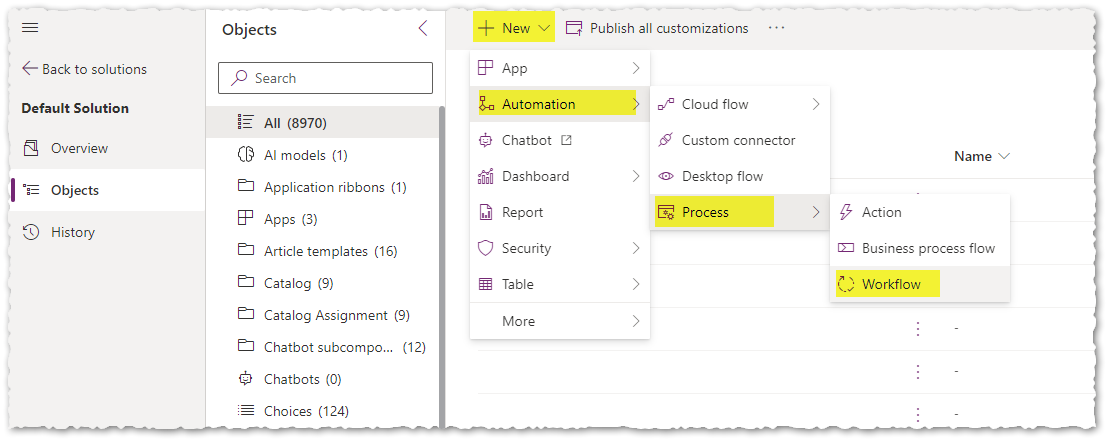
- Select New > Automation > Process > Workflow.
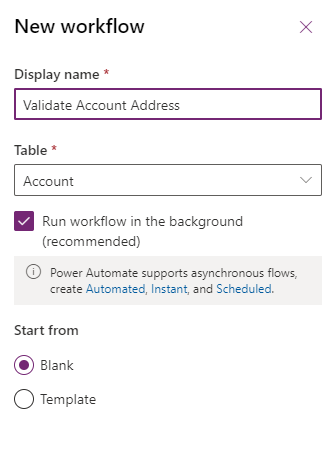
- Select the table where the address to validate is located, enter a name for your workflow and select Create.
- In the workflow designer, select Add Step > Address Validation > Verify with Azure Maps, Verify with Google Maps Geocoding or Verify with Google Address Validation.
- Select Set Properties and fill in the inputs. Use the Form Assistant (Dynamic Values) to take each input address value from the record's columns, for example Address 1: Street 1 for Input Street Address.
- Add a Check Condition on the step's Result Found output (equals Success) and, if you want, on Confidence Level. In the condition, add an Update Record step that writes the verified outputs to your address columns.
- Save and activate the workflow. You can run it on demand, or automatically when a record is created or its address changes.
Inputs
| Input | Required | What to enter |
|---|---|---|
| API Configuration | Yes | The API Configuration record for the API you use. |
| Input Street Address | Yes | House number and street. |
| Input Unit Number | Recommended | Apartment, suite or unit. If the API does not return a unit, the value you supply is kept. |
| Input City | Recommended | City. |
| Input State/Province | Recommended | State, province or region. |
| Input Zip/Postal Code | Optional | ZIP or postal code. |
| Input County | Optional | County. |
| Input Country | Recommended | Country name or ISO code (for example US, CA). |
Outputs
| Output | Description |
|---|---|
| Result Found | Success when a verified address was returned; Failed otherwise (for example an invalid license, not enough address data, or an API key problem). Check Verification Details for the reason. |
| Street Address, Unit Number, City, State/Province, County, Country | The standardized address components. |
| Zip/Postal Code | The postal code (for US addresses, the 5-digit ZIP code). |
| Extended Zip/Postal Code | The full postal code, for example ZIP+4 (Azure Maps and Google Address Validation only). |
| Full Address | The complete formatted address on one line. |
| Latitude, Longitude | The coordinates of the address. |
| Confidence Level | How confident the API is in the result. Azure Maps and Google Address Validation return the standardized levels described in Understanding Address Confidence Levels. Google Maps Geocoding returns HIGH (rooftop), MEDIUM, LOW or VERY_LOW. |
| Entity Type | The type of result returned, for example ROOFTOP (Google Maps Geocoding) or BUSINESS / RESIDENTIAL (Google Address Validation). |
| Verification Details | OK, or the reason the address could not be verified. |
The steps do not update the record themselves; your workflow decides what to write, which keeps the user's data safe when a result is not good enough.
Option 2: Field Mapping and Verify Address (legacy)
The legacy step reads the address from the columns defined in a Field Mapping record. Field Mappings are also used by Bulk Address Validation (Preview), by the Melissa Personator and Global buttons and workflow steps, and by the Melissa Personator and Global Power Automate actions.
Step 1: Create the Field Mapping record
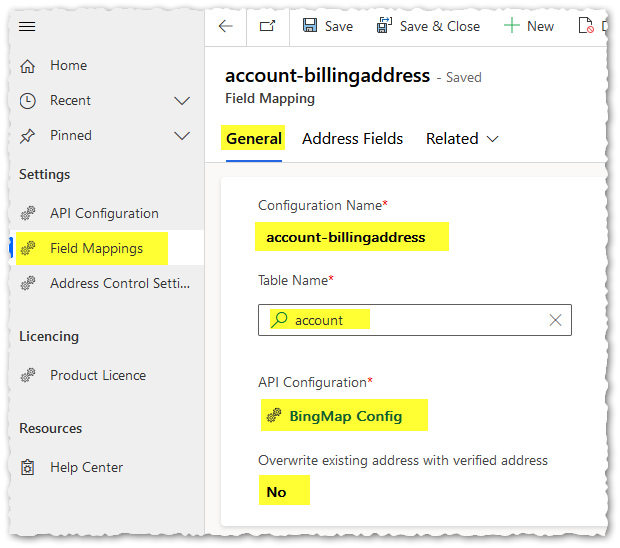
- In the Address Validation for Power Apps app, go to Settings > Field Mappings.
- Create a new record and enter the following information:
- Configuration Name: a unique name for the configuration record (for example, account-billingaddress).
- Table Name: the schema name of the source table (for example, account).
- API Configuration: the API Configuration (address validation API key) to use for this table.
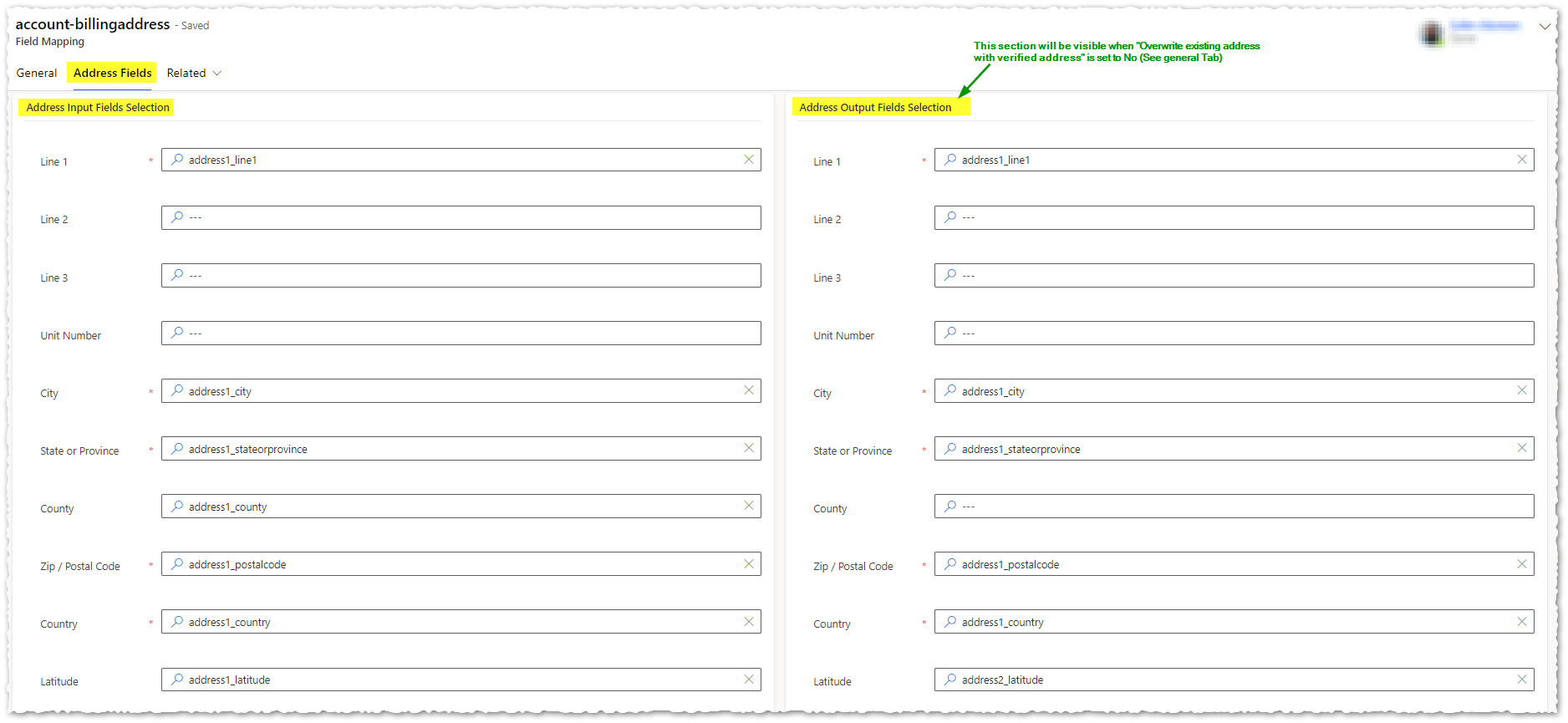
- Overwrite existing address with verified address: Yes or No. When set to Yes, you select one set of address columns used for both input and output: the process reads them, validates the address and overwrites them with the result. When set to No, you select one set of columns for the input address and a different set for the output, so the validated address is written to the output columns. This is often used to keep the data entered by users when Dataverse auditing is turned off.
Optional parameter - Output Language: by default, the verified address is returned in US English. Selecting Custom Language displays a field where you pick another language. The output language can be changed only when using the Google Maps API (supported languages). (Bing Maps also supported this option but is deprecated.)
Legacy parameter - Address Verification Button: ignore this option.
Step 2: Select the address columns
After completing the general information, fill out the columns on the address fields tab. Only text columns are allowed for address fields, except Latitude and Longitude, which require floating point number columns.
Step 3: Create the workflow
- Create the workflow as described in Option 1 (steps 1 to 3).
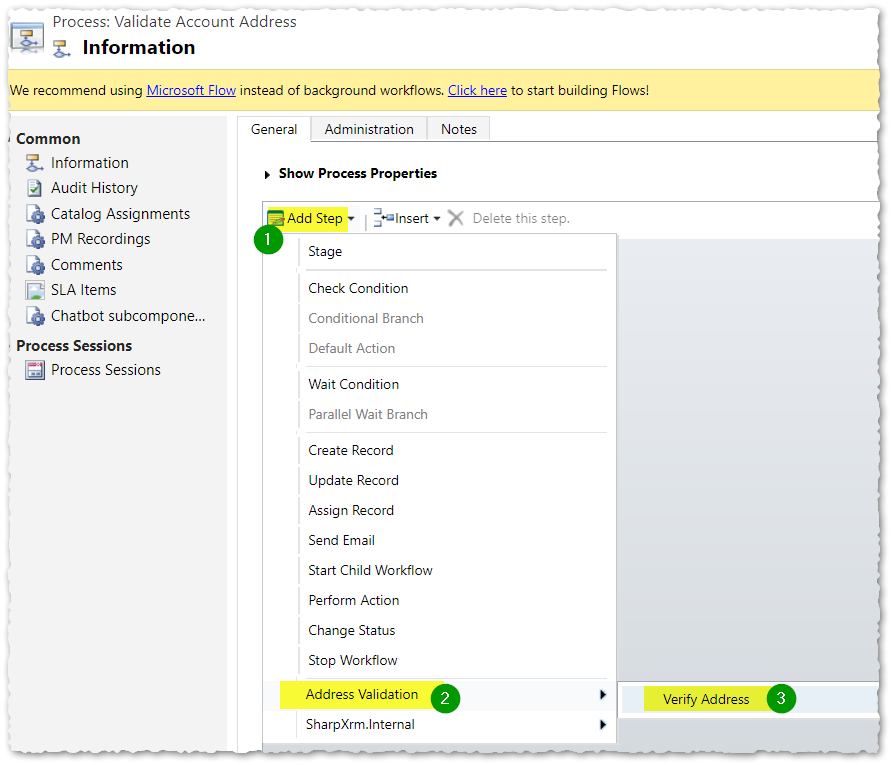
- In the workflow designer, select Add Step > Address Validation > Verify Address (legacy). In older versions, this step is named Verify Address.
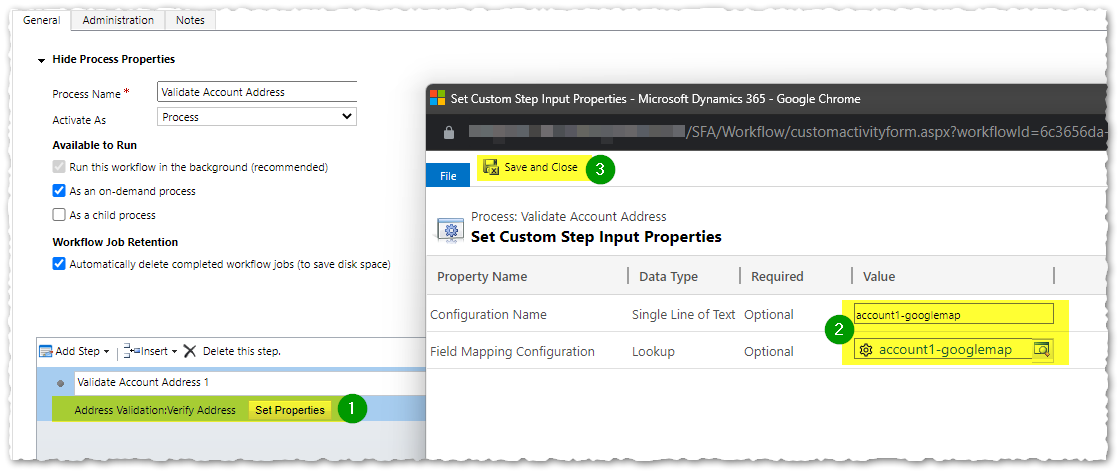
- Enter a description for the step (for example, Validate Account Address 1) and select Set Properties.
- Provide one of the two parameters. Both are optional in the user interface, but one is required: if both are provided, the lookup is used; if neither is provided, the workflow returns an error.
- Configuration Name: the name of the Field Mapping record, or
- Field Mapping Configuration: a lookup to the Field Mapping record.
- Add the steps that use the result, then save and activate the workflow.
The step does not write the verified address to the destination columns. It returns the verified address components as outputs, so you decide what to do with them. The example below writes the verified address to the account's Description column.
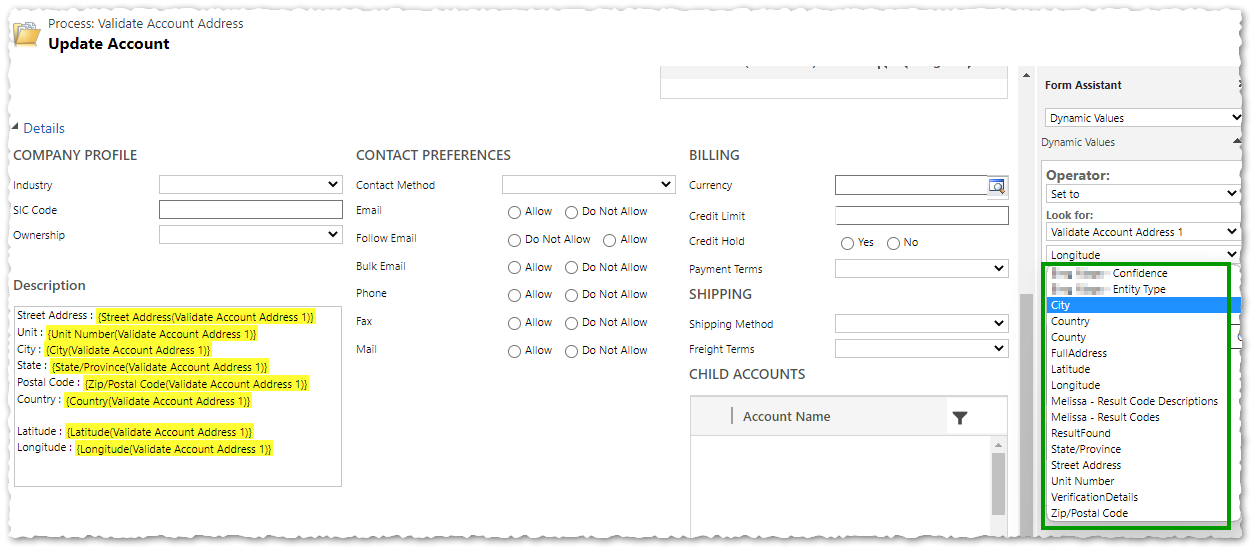
Outputs of Verify Address (legacy)
The examples below use this address: 175 W Jackson Blvd, Ste 500, Chicago, Cook County, IL 60604-3024, United States of America.
| Output | Expected value |
|---|---|
| Street Address | The street address, for example 175 W Jackson Blvd. |
| Unit Number | The unit number when found, for example Ste 500. When the API does not return a unit, the unit entered by the user is kept. |
| City | The city, for example Chicago. |
| County | The county when found, for example Cook. |
| State/Province | The state or province, for example IL. |
| Zip/Postal Code | The ZIP or postal code, for example 60604-3024. Melissa consistently returns ZIP+4 (US only); Google and Azure Maps return it when found. |
| Full Address | The full address on one line, for example 175 W Jackson Blvd, Ste 500, Chicago, IL 60604-3024. |
| Latitude | The latitude, for example 41.87776. |
| Longitude | The longitude, for example -87.63321. |
| Confidence | How confident the API is in the result. Google Maps returns HIGH (ROOFTOP), MEDIUM (RANGE_INTERPOLATED), LOW (GEOMETRIC_CENTER) or VERY_LOW (APPROXIMATE). Bing Maps (deprecated) returns LOW, MEDIUM, HIGH or UNKNOWN. |
| Entity Type | The type of result returned, for example the Google location type. Bing Maps (deprecated) returns values such as ADDRESS or NEIGHBORHOOD. |
| Verification Details | Depends on the API: OK or the reason for a failure (Google Maps), the list of Melissa result codes (Melissa Global and Personator), or the HTTP status code (Bing Maps, deprecated). Not supported for Canada Post Autocomplete. |
| Melissa Result Codes | Melissa only. A comma-separated list of the Melissa result codes. |
| Melissa Result Code Descriptions | Melissa only. A comma-separated list of short descriptions of the Melissa result codes. |