Overview
Address Validation for Dataverse exposes Melissa Global services (Global Address, Global Phone, Global Email and Global Name) as a Dataverse action named sharpxrm_GlobalPersonator (display name Sharp XRM - Global Personator). Power Automate can call it with the standard Microsoft Dataverse connector and its Perform an unbound action step. This article covers Global Address verification.
Like Melissa Personator, this action works on a row, not on an address you pass in. You send it the Target row and a Field Mapping. The action reads the address columns defined in the Field Mapping, calls Melissa Global Address Verification, and updates the row itself with the verified address (and coordinates and other values, if they are mapped). Your flow does not map outputs to columns. It triggers the validation and can react to the returned result codes.
Before you start
- Address Validation for Dataverse is installed, with a valid license.
- An active API Configuration row with Validation Service Type = Melissa Global and your Melissa license key. See Setup your Melissa API Key.
- An active Field Mapping row for the table (for example Table Name =
contact) whose Api Configuration Record is the Melissa Global configuration, with Global Service Type including Global Address. The Field Mapping defines:- the address columns used as input (Line 1 to 3, unit, city, state/province, county, postal code, country) and, optionally, last name and company name,
- Overwrite existing data with verified data: Yes writes results back into the same columns. No writes them into the destination columns,
- Global Address options such as geocoding output, output script and US standardization,
- Additional Mappings for extra outputs (for example the result codes in a Validation Result column).
- A Microsoft Dataverse connection in Power Automate.
How the example flow works
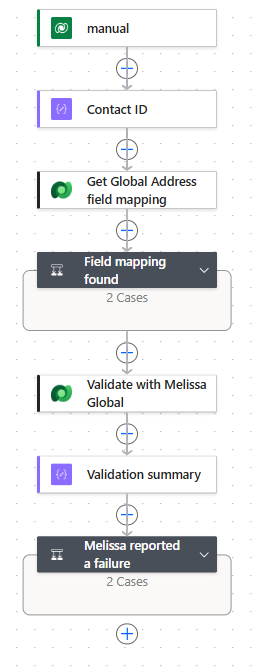
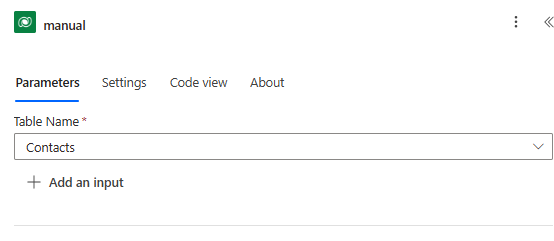
- When a row is selected (Contacts): users run the flow from the Flow menu on a contact.
- Contact ID (Compose): the selected contact's ID.
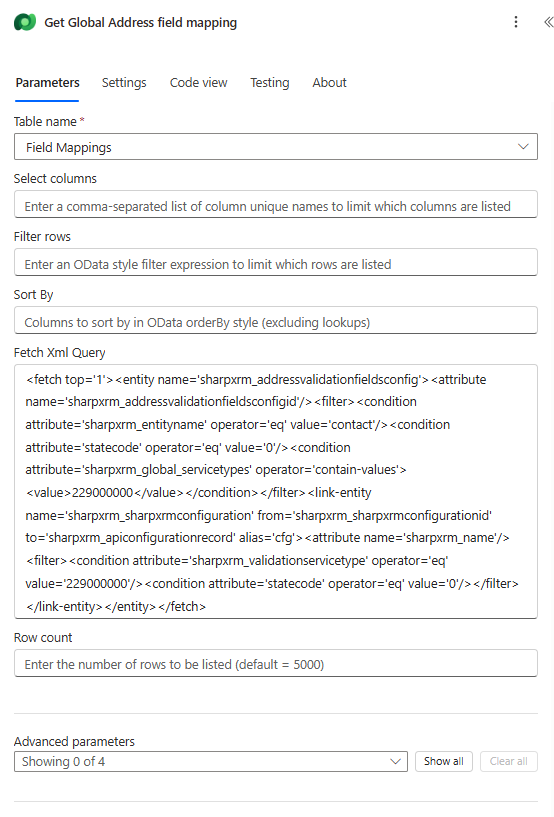
- Get Global Address field mapping (List rows): finds the contact Field Mapping that uses Melissa Global with the Global Address service.
- Field mapping found (Condition): stops with a clear error if there is none.
- Validate with Melissa Global (Perform an unbound action): verifies and updates the contact.
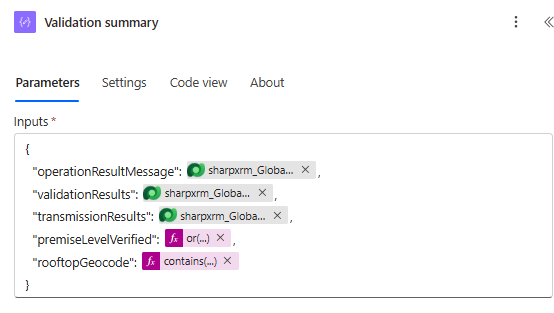
- Validation summary (Compose): turns the result codes into readable flags.
- Melissa reported a failure (Condition): marks the run as failed when Melissa reports a failure.
Find the Global Address Field Mapping
A table often has several Melissa Global Field Mappings, for example one each for address, phone, email and name. Always pass the ID of the Global Address mapping. Otherwise the action picks a Melissa Global mapping for the table on its own, and it might not be the address one. The example uses List rows on Field Mappings with this Fetch Xml Query:
<fetch top='1'><entity name='sharpxrm_addressvalidationfieldsconfig'><attribute name='sharpxrm_addressvalidationfieldsconfigid'/><filter><condition attribute='sharpxrm_entityname' operator='eq' value='contact'/><condition attribute='statecode' operator='eq' value='0'/><condition attribute='sharpxrm_global_servicetypes' operator='contain-values'><value>229000000</value></condition></filter><link-entity name='sharpxrm_sharpxrmconfiguration' from='sharpxrm_sharpxrmconfigurationid' to='sharpxrm_apiconfigurationrecord' alias='cfg'><attribute name='sharpxrm_name'/><filter><condition attribute='sharpxrm_validationservicetype' operator='eq' value='229000000'/><condition attribute='statecode' operator='eq' value='0'/></filter></link-entity></entity></fetch>
In this query, sharpxrm_global_servicetypes contain-values 229000000 selects mappings that include Global Address, and sharpxrm_validationservicetype = 229000000 selects API Configurations of type Melissa Global.
Call the action
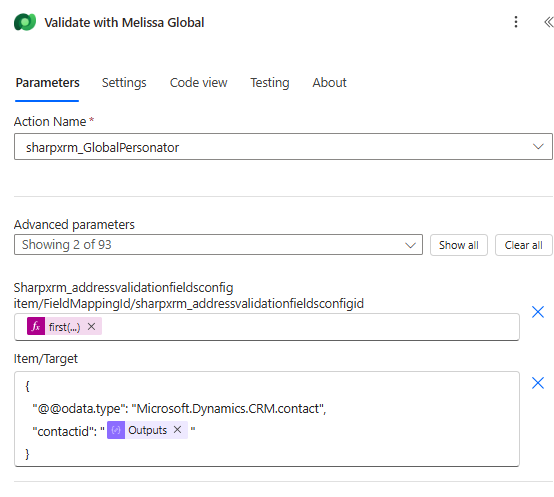
Add Microsoft Dataverse > Perform an unbound action and choose Action Name = sharpxrm_GlobalPersonator. Add the inputs from Advanced parameters. The designer shows "Showing 2 of 93" because the Field Mapping input lists every Field Mapping column. Only the ID field needs a value.
Input fields
| Designer field | Required | What to enter |
|---|---|---|
item/Target | Yes | A JSON object that identifies the row to validate. For a contact:{ "@@odata.type": "Microsoft.Dynamics.CRM.contact", "contactid": "<Contact ID>" }For an account, use Microsoft.Dynamics.CRM.account and accountid. For a custom table, use Microsoft.Dynamics.CRM.<logical name> and <logical name>id. Type the double @@: it is how Power Automate escapes a literal @, and it is sent as @odata.type at run time. |
Sharpxrm_addressvalidationfieldsconfigitem/FieldMappingId/sharpxrm_addressvalidationfieldsconfigid | Strongly recommended | The ID of the Global Address Field Mapping. Its Table Name must match the Target's table. In the example: first(outputs('Get_Global_Address_field_mapping')?['body/value'])?['sharpxrm_addressvalidationfieldsconfigid']. |
Output values
Each output is prefixed with the Global service that produced it. This lets a single Field Mapping run several services, for example Address: or Phone:.
| Output | Description |
|---|---|
OperationResultMessage | Address:Success when the row was processed, or Address:Failed when Melissa returned no record or a service or general transmission error (SE or GE codes). |
ValidationStatus | Validation outcome per service, for example Address:NOT_VERIFIED. VERIFIED: no error code. PARTIAL: an error code that is not in the Field Mapping's Melissa Blocking Result Codes, so the data was saved. NOT_VERIFIED: a blocking code was returned, so that service's columns were not updated. SKIPPED: a required input is empty, so Melissa was not called. |
ValidationResults | Record-level result codes, for example Address:AC01,AC16,AV24,GS05. |
TransmissionResults | Transmission-level codes. Empty (Address:) when the request was accepted. |
TransmissionReference | Melissa's transmission reference, if any. |
Report or react to the result
The example Validation summary compose turns the codes into flags:
premiseLevelVerified=or(contains(ValidationResults, 'AV24'), contains(ValidationResults, 'AV25'))rooftopGeocode=contains(ValidationResults, 'GS05')
Common Melissa Global Address codes:
| Code | Meaning |
|---|---|
AV25 | Fully verified to delivery point level (for example the unit). |
AV24 | Fully verified to premise (building) level. |
AV21 to AV23 | Fully verified only to administrative area, locality or street level. |
AV11 to AV14 | Partially verified (for example AV12, partially verified to locality level). |
GS05 | Geocoded to rooftop level. |
AE.. / AC.. | Address errors (for example AE02, unknown street) and changes made to the input. |
For the full list, see the Melissa result code reference on wiki.melissadata.com.
Behavior to be aware of: each Global service checks its record-level codes against the Field Mapping's Melissa Blocking Result Codes. When a listed code is returned, that service does not write its columns; the codes are still stored in the Validation Details field. When the list is empty, Global Address blocks any AE (address error) or GE (geocode error) code, and Global Email, Phone and Name write every result. A blocked address does not stop the other services from saving their results. To also refuse partially verified addresses, add AV1* to the list. If you only want premise-level data to replace the original address, you can still set Overwrite existing data with verified data to No and copy the results over in the flow when premiseLevelVerified or rooftopGeocode is true.
Expected results
- 1600 amphitheatre pkwy, mountain view, CA, USA:
Address:Success,Address:AC01,AC16,AV24,GS05. The contact is updated to 1600 Amphitheatre Pkwy, Mountain View, CA 94043-1351, Santa Clara, United States of America, with coordinates.ValidationStatusisAddress:VERIFIED; premiseLevelVerified and rooftopGeocode are bothtrue. - Main Street, Toronto:
Address:Success,Address:NOT_VERIFIED,Address:AC01,AE02,AV12,GE02. The address columns are not changed and both flags arefalse.
Troubleshooting
| Message | What to check |
|---|---|
| PCE01 : Unable to find a corresponding Field Mapping to process this request. | No active Melissa Global Field Mapping for the Target's table. |
| PCE01 : The Api Configuration related to the provided Field Mapping is not valid for this operation. | The Field Mapping you passed is for another table, or its API Configuration is not Melissa Global. |
| The phone, email or name was validated instead of the address | No Field Mapping ID was passed and the action picked another Melissa Global mapping. Pass the Global Address mapping ID. |
| Exception occured when contacting melissa data. HttpCode … | Check the Melissa license key on the API Configuration and its credits. |
| Template error mentioning odata.type when saving the flow | The Target uses a single @. Use @@odata.type. |
Related articles
- Setup your Melissa API Key
- Configure Background Address Validation: Field Mapping and Workflows
- Address Validation using Dataverse Workflow Processes
- Validate Addresses with Power Automate: Melissa Personator (Unbound Action)