Overview
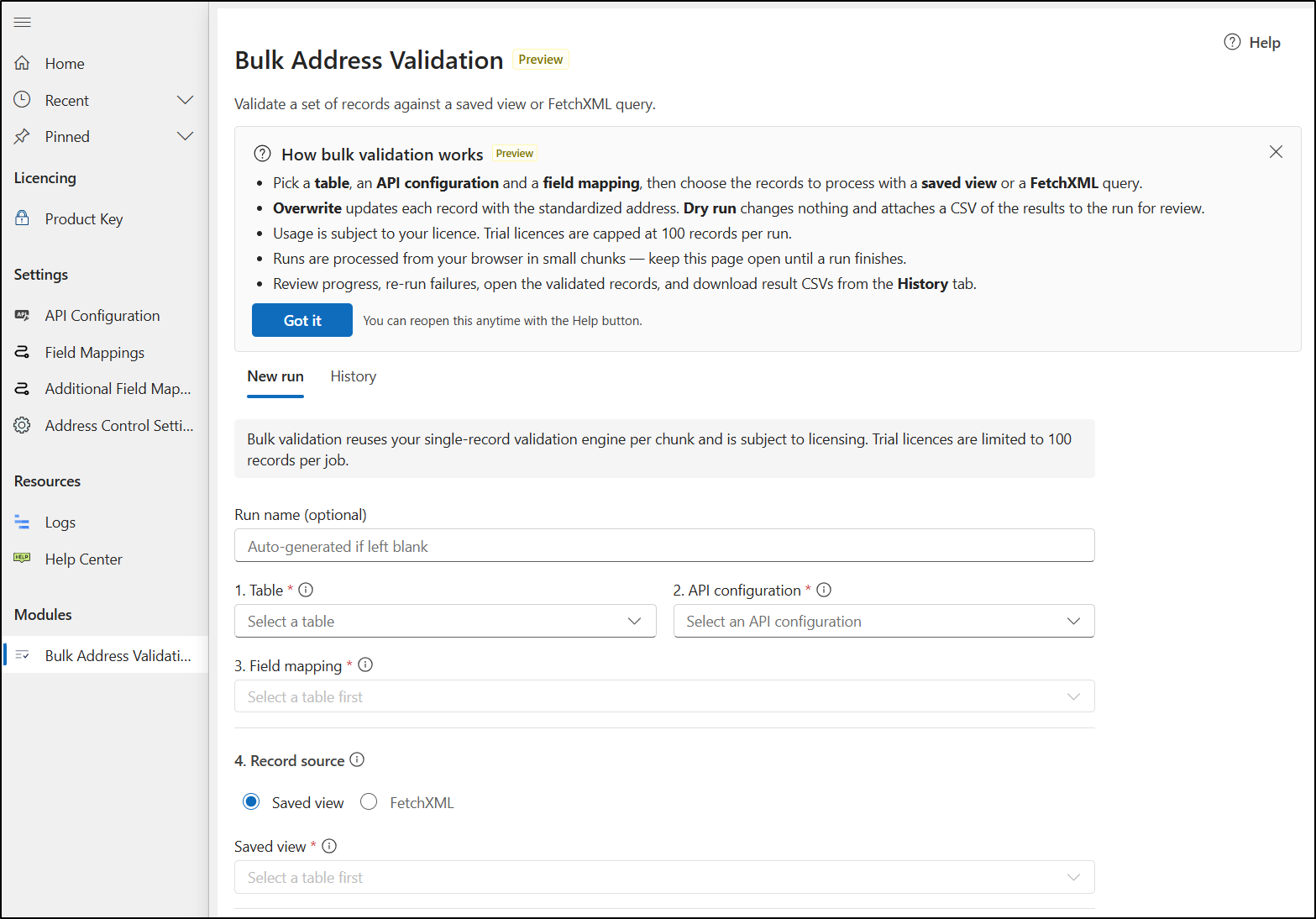
Bulk Address Validation lets you validate the addresses on many Dataverse records in a single run, instead of one record at a time. You pick a table, an API Configuration and a Field Mapping, then target the records you want using a saved view or FetchXML. The feature runs inside the Address Validation for Dataverse app.
Preview feature: Bulk Address Validation is currently a Preview feature in the app (look for the Preview badge next to the title). Behavior and screens may change before general availability.
Licensing: Bulk Address Validation is subject to your Address Validation license.
Before you start
- An API Configuration record for the provider you want to use (currently supported: Melissa, Google Maps, Azure Maps).
- A Field Mapping record that maps the address fields on your target table to the validation service.
- A way to select the records to process: an existing saved (system) view, a personal view, or a FetchXML query.
- A valid Address Validation license.
Run a bulk validation
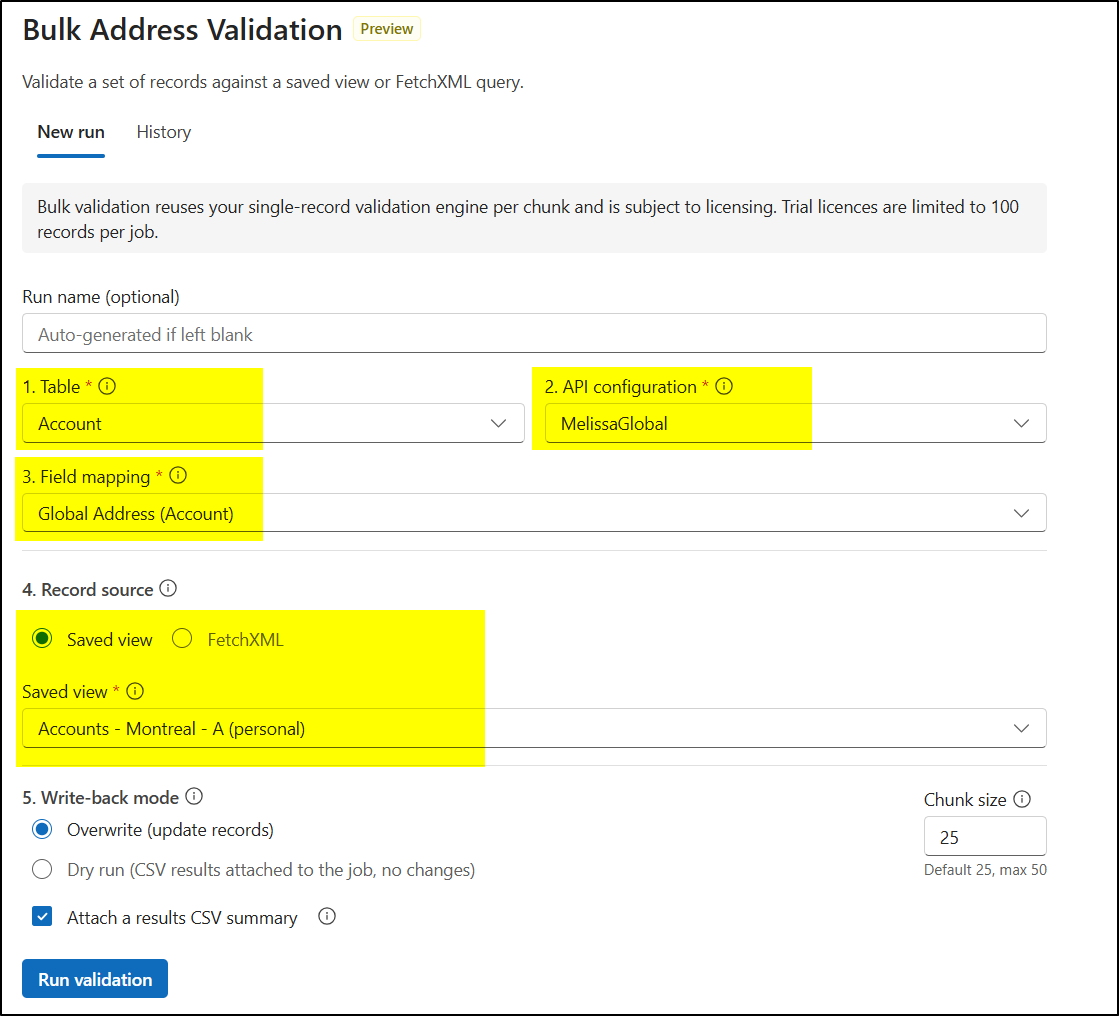
- Open the Address Validation for Dataverse app and go to Bulk Address Validation.
- On the New run tab, choose the Table whose records you want to validate.
- Select the API Configuration (the validation provider) to use.
- Select the Field Mapping record for that table.
- Choose your record source: pick a Saved view, or paste a FetchXML query. Only records returned by the view or query are processed.
- Optionally adjust the Chunk size (records are processed in chunks to stay within platform and licensing limits).
- Pick a Write-back mode (see below) and start the run.
Each field in the wizard has an info icon (hover for details), and a dismissible Help panel appears the first time you open the feature. You can reopen it any time with the Help button.
Write-back modes
- Overwrite — Validated address values are written back onto the source records. This updates your data in place.
- Dry Run — No records are changed. The run produces a results CSV so you can review what would change before committing.
Results CSV (opt-in for Overwrite)
- Dry Run always produces a results CSV. For Overwrite runs you can also opt in to a results summary using the Generate results CSV checkbox (on by default). When enabled, successfully updated rows are appended to a single CSV report that is attached to the run as a note.
- The CSV is a single, chunk-appended note (it rolls over to a new note past a size threshold) rather than one record per row, so it stays efficient even for very large runs. Records that fail or are skipped are tracked separately as run detail rows.
Review results in History
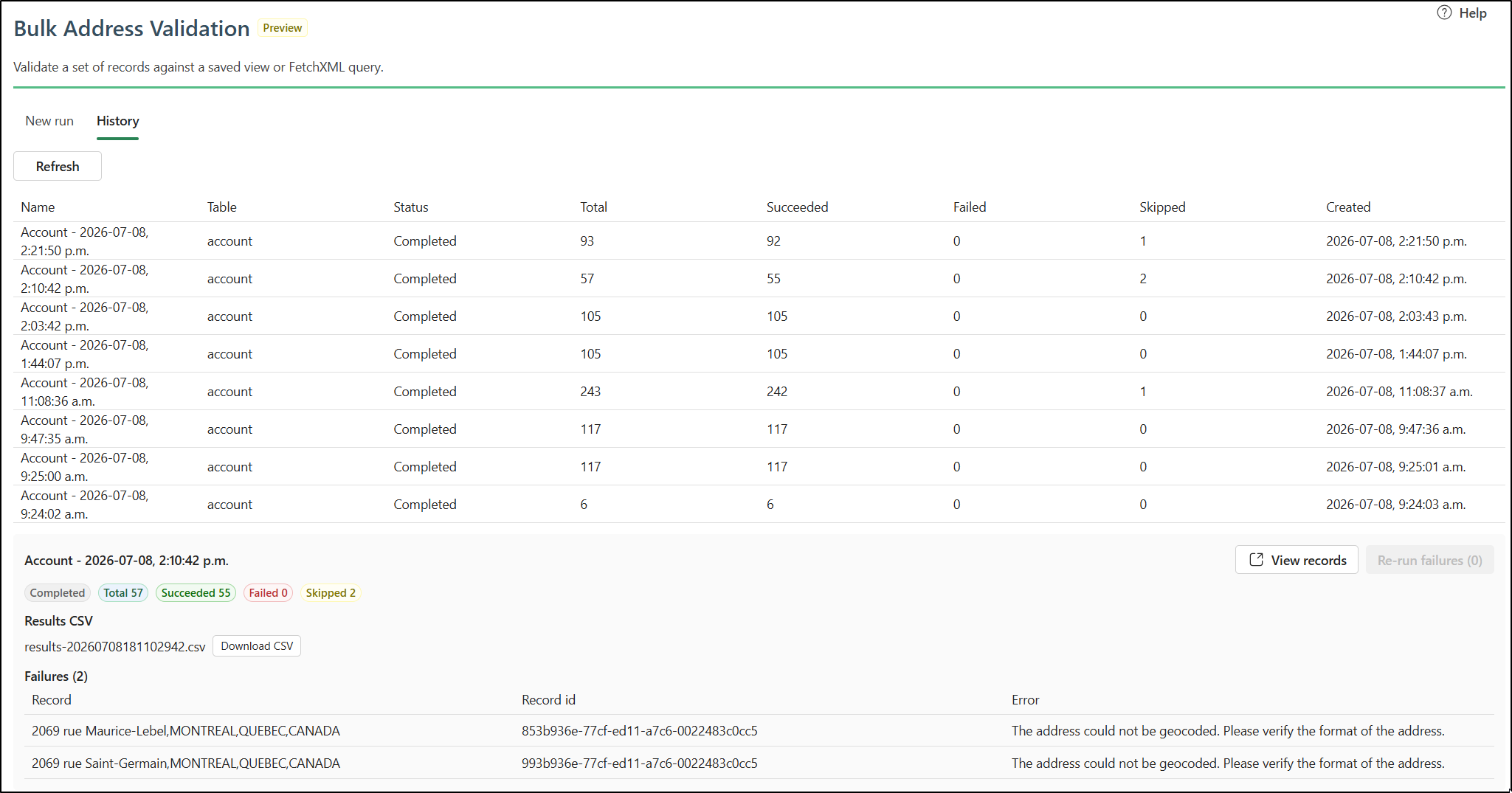
The History tab lists your previous runs with their status and counts (processed / succeeded / failed / skipped). Select a run to:
- Use View records to open the run's target records — the saved or personal view you selected, or the entity list for FetchXML runs.
- Download the Results CSV from the run's notes (when one was generated).
Tips and notes
- Start with a small view and a Dry Run to confirm your Field Mapping and provider settings before doing a large Overwrite.
- Large runs are processed in chunks; you can watch progress as the run advances.
- If a run reports a license issue, confirm your Address Validation license is active and includes the required premium features.
Frequently asked questions
Does a big run create a lot of extra records?
- No. The results CSV is a single appended note (with size-based rollover), so a large success-only run does not create one tracking record per address.
Will Overwrite change my data automatically?
- Yes — Overwrite writes validated values back to the source records. Use Dry Run first if you want to preview changes.
Can I limit which records are processed?
- Yes. Only records returned by the selected saved view, personal view, or FetchXML query are processed.