Overview
Address Validation for Dataverse exposes the Google Maps Geocoding API as a Dataverse unbound action named sharpxrm_VerifyWithGoogleGeocoding (display name Verify With Google Geocoding). Power Automate can call it with the standard Microsoft Dataverse connector and its Perform an unbound action step, so no custom connector is needed.
You send the action an address, and it returns a standardized address, a confidence level, and the latitude and longitude. The action does not update any record. Your flow decides what to do with the result, for example update the row only when Google returns a precise (rooftop) match. It uses the same validation engine as the Address Validation workflow steps.
Typical uses:
- On-demand validation from the Flow menu of a model-driven app (the example in this article).
- Scheduled clean-up of existing addresses.
- Validating addresses created by integrations, imports or portals.
Before you start
- Address Validation for Dataverse is installed in a version that includes the Power Automate unbound actions. If
sharpxrm_VerifyWithGoogleGeocodingis not listed in the Action Name drop-down, upgrade the solution. - A valid Address Validation license. Without one, the action returns
ResultFound = Failedand the license message inVerificationDetails. - An active API Configuration row with Validation Service Type = Google Maps API and a Google API key that has the Geocoding API enabled. See Setup your Google Maps API Key.
- A Microsoft Dataverse connection in Power Automate. In this example, the account behind the connection must be able to read API Configuration rows and update contacts.
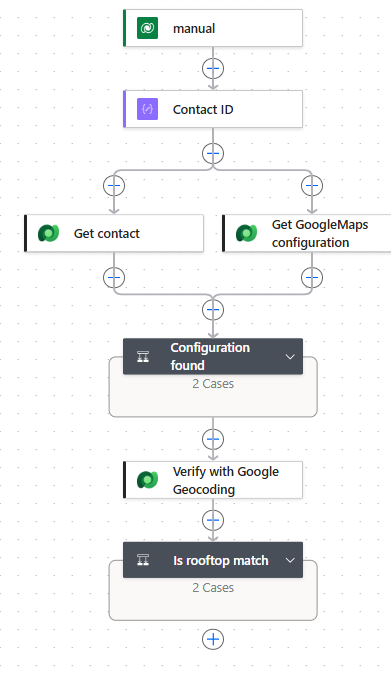
How the example flow works
- manual (When a row is selected): runs when a user picks the flow from the Flow menu on a contact. If several contacts are selected, the flow runs once per contact.
- Contact ID (Compose): keeps the ID of the selected contact.
- Get contact (Get a row by ID): reads the current Address 1 columns of the contact.
- Get GoogleMaps configuration (List rows): finds the API Configuration row by name.
- Configuration found (Condition): stops the run with a clear error if no configuration was found.
- Verify with Google Geocoding (Perform an unbound action): calls the Address Validation action.
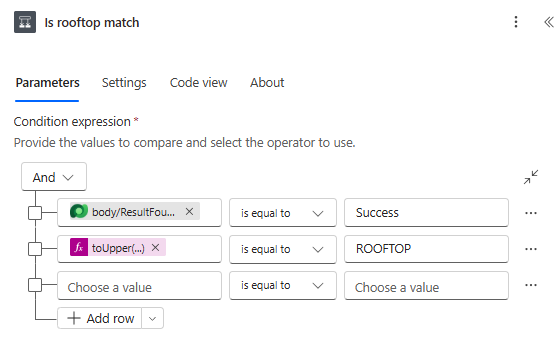
- Is rooftop match (Condition): overwrites Address 1 only when Google returns a
ROOFTOPmatch. Otherwise the contact is left unchanged and the reason is recorded in the run history.
Step 1: Trigger the flow from a row
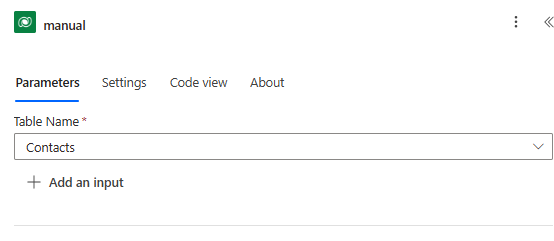
Add the Microsoft Dataverse trigger When a row is selected and set Table Name to Contacts. Turn the flow on. Users who own the flow, or with whom it is shared, can then open a contact and choose Flow > your flow name on the command bar. You can use any other trigger instead (scheduled, row added or modified, and so on). The unbound action works the same way.
Add a Compose action named Contact ID with the contact's ID from the trigger, and a Get a row by ID action (Get contact) on Contacts. Set Select columns to the Address 1 columns you want to validate, for example address1_line1,address1_line2,address1_city,address1_stateorprovince,address1_postalcode,address1_county,address1_country.
Step 2: Find the API Configuration
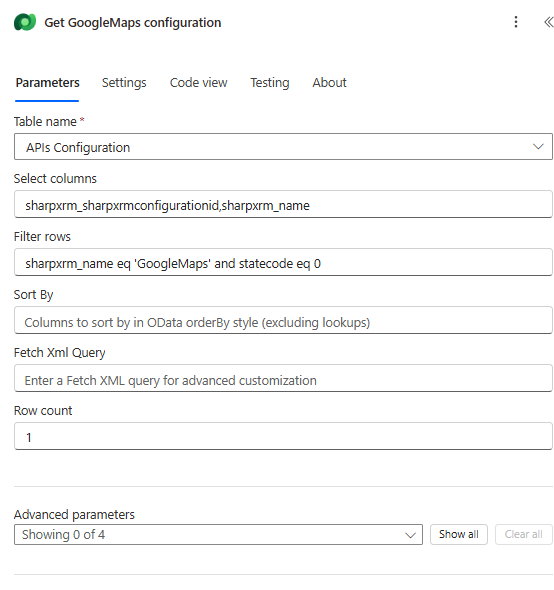
The action needs the ID of the API Configuration row that holds your Google key. To avoid hard-coding a GUID, look it up by name with List rows:
| Field | Value |
|---|---|
| Table name | APIs Configuration |
| Select columns | sharpxrm_sharpxrmconfigurationid,sharpxrm_name |
| Filter rows | sharpxrm_name eq 'GoogleMaps' and statecode eq 0. Replace GoogleMaps with the API Config Name of your record. |
| Row count | 1 |
Add a Condition that checks length(outputs('Get_GoogleMaps_configuration')?['body/value']) is greater than 0. In the False branch, add a Terminate action (status Failed) so a missing configuration is easy to diagnose.
Step 3: Call the unbound action
Add Microsoft Dataverse > Perform an unbound action and choose Action Name = sharpxrm_VerifyWithGoogleGeocoding. The inputs appear under Advanced parameters. Add the ones you need with Show all or from the drop-down.
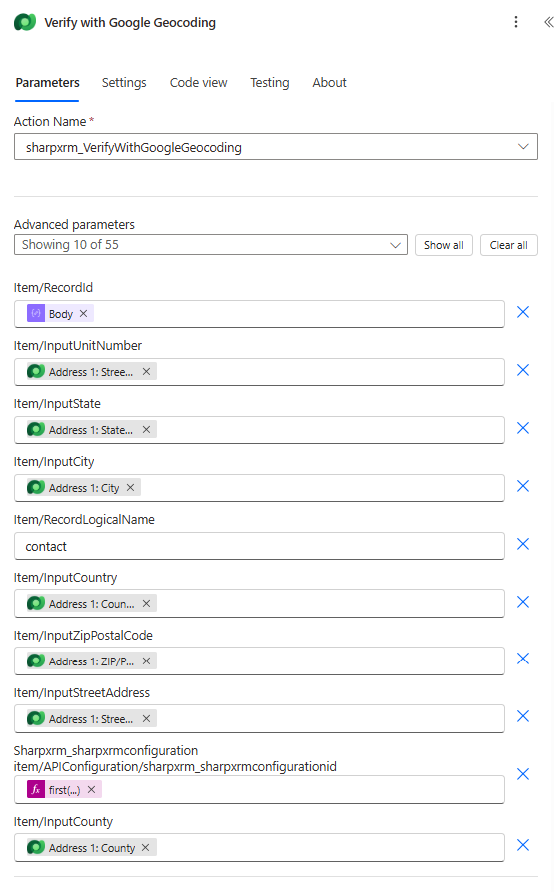
Why does the designer say "Showing 10 of 55"? The API Configuration input is a reference to a table row, so the designer lists every column of the API Configuration table as an optional field. Only the ID field (item/APIConfiguration/sharpxrm_sharpxrmconfigurationid) needs a value. Leave the other API Configuration fields empty.
Input fields
| Designer field | Required | What to enter | Value used in the example |
|---|---|---|---|
sharpxrm_sharpxrmconfigurationitem/APIConfiguration/sharpxrm_sharpxrmconfigurationid | Yes | The ID (GUID) of the API Configuration row that holds the Google Maps key. The row's service type must be Google Maps API. | first(outputs('Get_GoogleMaps_configuration')?['body/value'])?['sharpxrm_sharpxrmconfigurationid'] |
item/InputStreetAddress | Recommended | House number and street name (address line 1). If Google cannot resolve a street address, the action returns ResultFound = Failed. | Address 1: Street 1 |
item/InputUnitNumber | Optional | Apartment, suite or unit (for example Suite 200). | Address 1: Street 2 |
item/InputCity | Recommended | City or locality. | Address 1: City |
item/InputState | Recommended | State or province, as a full name or an abbreviation. | Address 1: State/Province |
item/InputZipPostalCode | Optional | ZIP or postal code. Leave it empty if unknown, because Google can infer it. | Address 1: ZIP/Postal Code |
item/InputCounty | Optional | County or region. | Address 1: County |
item/InputCountry | Recommended | Country name or ISO code. Supplying the country greatly improves accuracy. | Address 1: Country/Region |
item/RecordLogicalName | Optional | Logical name of the row being validated (for example contact or account). Used only to stamp the transaction log. It does not make the action update the row. | contact |
item/RecordId | Optional | ID of the row being validated. Like RecordLogicalName, it is used only for the transaction log. | Contact ID output |
All address inputs are plain text and can be empty. A transaction log (Address Validation Log) is written only when Save Transaction Logs is enabled on the API Configuration row.
Output values
Reference outputs in later steps with expressions such as outputs('Verify_with_Google_Geocoding')?['body/StreetAddress'], or pick them from the dynamic content list.
| Output | Description |
|---|---|
ResultFound | Success or Failed. |
VerificationDetails | OK on success. Otherwise the reason (for example an invalid license, or not enough address data). |
StreetAddress | Standardized house number and street, for example 1600 Amphitheatre Parkway. |
UnitNumber | Unit or suite, when Google returns one. |
City, ZipPostalCode, County | Standardized values, for example Mountain View, 94043, Santa Clara County. |
State, Country | Full names returned by Google, for example California and United States. |
FullAddress | The complete formatted address. |
Latitude, Longitude | Decimal coordinates. |
EntityType | Google's location type: ROOFTOP, RANGE_INTERPOLATED, GEOMETRIC_CENTER or APPROXIMATE. |
Confidence | The location type expressed as a level: HIGH, MEDIUM, LOW, VERY_LOW or UNKNOWN (see below). |
| EntityType (location type) | Confidence | Meaning |
|---|---|---|
ROOFTOP | HIGH | Precise match to the building (rooftop). |
RANGE_INTERPOLATED | MEDIUM | Position interpolated between two points on the street. |
GEOMETRIC_CENTER | LOW | Centre of a street, area or region. |
APPROXIMATE | VERY_LOW | Approximate location only. |
Step 4: Decide whether to update the row
Because the action never writes to Dataverse, add a Condition that accepts only the matches you trust. The example overwrites Address 1 only for rooftop matches:
body/ResultFoundis equal toSuccess, andtoUpper(coalesce(outputs('Verify_with_Google_Geocoding')?['body/EntityType'], ''))is equal toROOFTOP.
In the True branch, add Update a row (Contacts, Row ID = Contact ID) and map the outputs to the columns:
| Contact column | Action output |
|---|---|
Address 1: Street 1 (address1_line1) | StreetAddress |
Address 1: Street 2 (address1_line2) | UnitNumber, only when it is not empty (otherwise keep the existing value) |
| Address 1: City | City |
| Address 1: State/Province | State |
| Address 1: ZIP/Postal Code | ZipPostalCode |
| Address 1: County | County |
| Address 1: Country/Region | Country |
| Address 1: Latitude / Longitude | Latitude / Longitude |
In the False branch, a Compose that records ResultFound, EntityType, Confidence and FullAddress makes it easy to see in the run history why a row was not updated. You could also notify the user or create a task.
Expected results
- 1600 amphitheatre pkwy, mountain view, CA, USA returns
ROOFTOP/HIGH. The contact is updated to 1600 Amphitheatre Parkway, Mountain View, California 94043, United States, with Santa Clara County and the coordinates. - Main Street, Toronto, ON, Canada (no house number) is not a rooftop match, so the contact is left unchanged.
Tips and troubleshooting
- The action is not in the Action Name list: the installed solution version does not include the Power Automate actions. Upgrade Address Validation for Dataverse.
- ResultFound is Failed: check
VerificationDetails. Common causes are an invalid license, an incomplete address, or a key that does not have the Geocoding API enabled or is restricted. - "API Configuration reference is required" / "System configuration could not be retrieved": the API Configuration ID is empty or does not match an active row.
- The flow is not in the Flow menu: the flow must be turned on, use When a row is selected on the same table, and be owned by or shared with the user.
- State and country format: Geocoding returns full names (California, United States). Map the outputs differently if you prefer to keep abbreviations.
- Cost: every run calls the Google Geocoding API and counts towards your Google usage.
Related articles
- Setup your Google Maps API Key
- Address Validation using Dataverse Workflow Processes
- Understanding Address Confidence Levels
- Validate Addresses with Power Automate: Google Address Validation (Unbound Action)