Overview
Address Validation for Dataverse exposes the Google Address Validation API as a Dataverse unbound action named sharpxrm_VerifyWithGoogleAddressValidation (display name Verify With Google Address Validation). Power Automate can call it with the standard Microsoft Dataverse connector and its Perform an unbound action step.
Unlike Geocoding, which finds a location for an address, the Address Validation API checks the address itself. It confirms or corrects each component, fills in missing parts (for example the ZIP+4 or full postal code), and reports how precisely the address was validated. For US addresses, it also returns USPS delivery-point information.
The action does not update any record. It returns the validated address and the details, and your flow decides what to write.
Before you start
- Address Validation for Dataverse is installed in a version that includes the Power Automate unbound actions (
sharpxrm_VerifyWithGoogleAddressValidationappears in the Action Name list). - A valid Address Validation license.
- An active API Configuration row with Validation Service Type = Google Maps API. The Google API key must have the Address Validation API enabled in Google Cloud. The same API Configuration row can serve both the Geocoding and the Address Validation actions. See Setup your Google Maps API Key.
- A Microsoft Dataverse connection in Power Automate.
How the example flow works
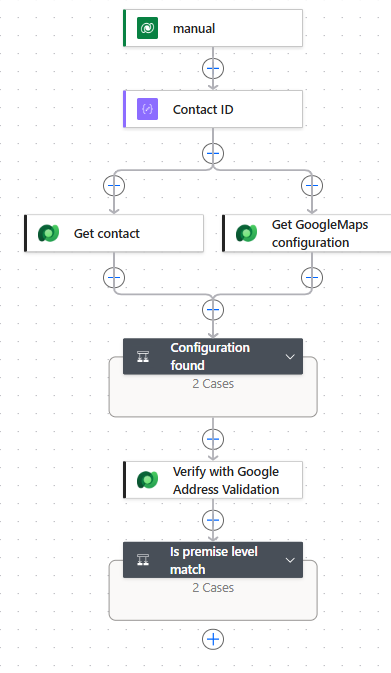
The flow is built exactly like the Google Maps Geocoding example. Only the action that is called and the rule that decides when to overwrite are different:
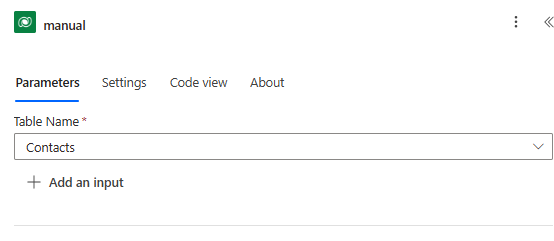
- When a row is selected (Contacts): users run the flow from the Flow menu on a contact.
- Contact ID (Compose) and Get contact (Get a row by ID): read the Address 1 columns, including latitude and longitude.
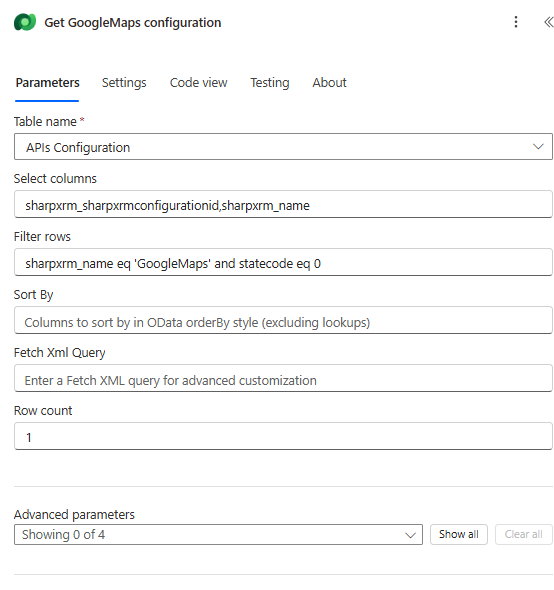
- Get GoogleMaps configuration (List rows on APIs Configuration, filter
sharpxrm_name eq 'GoogleMaps' and statecode eq 0, row count 1) and Configuration found (Condition with a Terminate in the False branch). - Verify with Google Address Validation (Perform an unbound action).
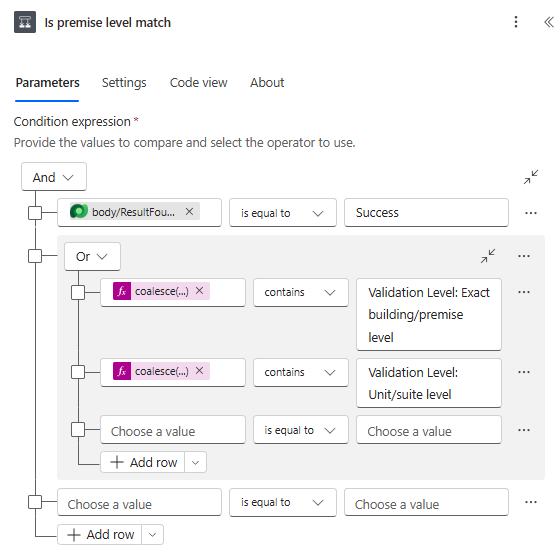
- Is premise level match (Condition): overwrites Address 1 only when Google validated the address to building or unit level.
Call the unbound action
Add Microsoft Dataverse > Perform an unbound action and choose Action Name = sharpxrm_VerifyWithGoogleAddressValidation. Add the inputs from Advanced parameters.
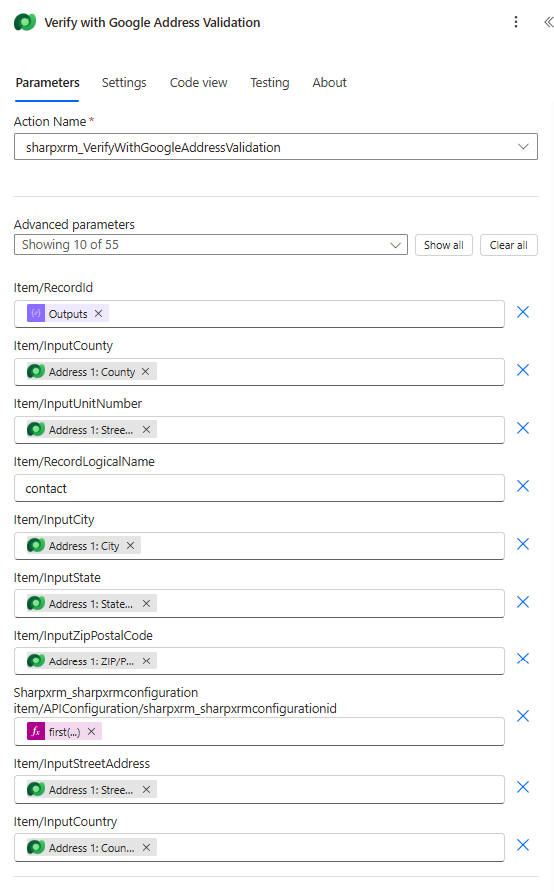
Why does the designer say "Showing 10 of 55"? The API Configuration input is a reference to a table row, so the designer lists every column of that table. Only the ID field needs a value.
Input fields
| Designer field | Required | What to enter | Value used in the example |
|---|---|---|---|
sharpxrm_sharpxrmconfigurationitem/APIConfiguration/sharpxrm_sharpxrmconfigurationid | Yes | The ID (GUID) of the API Configuration row that holds the Google key. | first(outputs('Get_GoogleMaps_configuration')?['body/value'])?['sharpxrm_sharpxrmconfigurationid'] |
item/InputStreetAddress | Recommended | House number and street name. Without a resolvable street, the action returns ResultFound = Failed. | Address 1: Street 1 |
item/InputUnitNumber | Optional | Apartment, suite or unit. Google can then validate down to unit level. | Address 1: Street 2 |
item/InputCity | Recommended | City or locality. | Address 1: City |
item/InputState | Recommended | State or province. | Address 1: State/Province |
item/InputZipPostalCode | Optional | ZIP or postal code. Google infers or corrects it when it is missing or wrong. | Address 1: ZIP/Postal Code |
item/InputCounty | Optional | County or region. | Address 1: County |
item/InputCountry | Recommended | Country name or ISO code. It is converted to the region code that Google requires, so always supply it. | Address 1: Country/Region |
item/RecordLogicalName | Optional | Logical name of the row being validated. Used only to stamp the transaction log. | contact |
item/RecordId | Optional | ID of the row being validated, for the transaction log only. | Contact ID output |
A transaction log is written only when Save Transaction Logs is enabled on the API Configuration row.
Output values
| Output | Description |
|---|---|
ResultFound | Success or Failed. Incomplete addresses that cannot be validated (for example a street with no house number) return Failed. |
VerificationDetails | A readable, multi-line report. It starts with Validation Level: … (for example Exact building/premise level, Unit/suite level, Street level). It then lists USPS details for US addresses, whether the address is complete, missing or unconfirmed components, and every change made to the input. |
StreetAddress, UnitNumber, City, State, ZipPostalCode, Country | The validated components. The state is usually returned as an abbreviation (CA, ON). |
ExtendedZipPostalCode | ZIP+4 for US addresses (for example 94043-1351), or the full postal code elsewhere. |
County | Normally empty, because the Address Validation API does not return a county. |
FullAddress | Google's formatted address. |
Latitude, Longitude | Coordinates of the validated address (0 when none were returned). |
Confidence | HIGH, MEDIUM, LOW or VERY_LOW. This is a score based on the validation level, whether the address is complete, and whether components were inferred or replaced. |
EntityType | BUSINESS or RESIDENTIAL when Google provides that information. Otherwise it is empty. |
Decide whether to update the row
The Address Validation API has no ROOFTOP value. The closest equivalent is a building/premise or unit/suite validation level. Confidence = HIGH is not used as the gate, because a complete street-level match can also score HIGH. The example condition is:
body/ResultFoundis equal toSuccess, and one of the following:VerificationDetailscontainsValidation Level: Exact building/premise level, orVerificationDetailscontainsValidation Level: Unit/suite level.
In the True branch, Update a row (Contacts) maps StreetAddress, UnitNumber, City, State, ZipPostalCode, County, Country, Latitude and Longitude to the Address 1 columns. Some components can be empty (County in particular), so each column keeps its current value when the output is empty. For example:
if(empty(outputs('Verify_with_Google_Address_Validation')?['body/County']), outputs('Get_contact')?['body/address1_county'], outputs('Verify_with_Google_Address_Validation')?['body/County'])
Latitude and longitude are only written when Google returned coordinates (they are not both 0). To store the ZIP+4 instead of the 5-digit ZIP, map ExtendedZipPostalCode to the postal code column.
Expected results
- 1600 amphitheatre pkwy, mountain view, CA, USA: building level,
HIGH. Updated to 1600 Amphitheatre Parkway, Mountain View, CA 94043, and an existing county value is kept. - 100 king st w / suite 5700, toronto, ON, Canada: validated and updated to 100 King Street West, Suite 5700, M5H 1H1.
- Main Street, Toronto, ON, Canada: street level only, so the contact is left unchanged.
Tips and troubleshooting
- ResultFound is Failed: read
VerificationDetails. Common causes are an invalid license, missing components, or a Google key without the Address Validation API enabled. - Use VerificationDetails in notifications: its "Changes made" section explains exactly what Google corrected, which is useful in an approval or notification step.
- Differences from Geocoding: abbreviated states, ZIP+4 available, no county, plus business or residential classification.
- Cost: every run calls the Google Address Validation API and counts towards your Google usage.
Related articles
- Setup your Google Maps API Key
- Understanding Address Confidence Levels
- Validate Addresses with Power Automate: Google Maps Geocoding (Unbound Action). This article explains the trigger and configuration steps in more detail.