This article covers how to setup the Melissa Personator to be used on your Dynamics 365 Account and Contact Model Driven forms and how to expand usage of Personator using Workflows. These steps must be done by an administrator or a user with system configuration privileges.
TABLE OF CONTENTS
Personator Configuration Steps
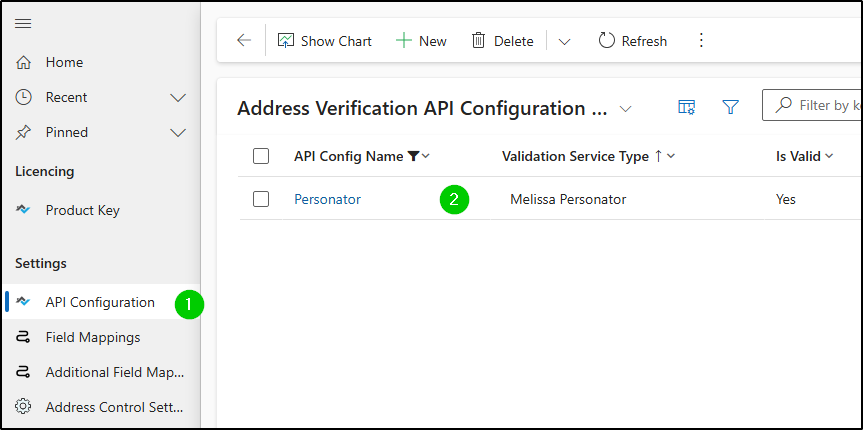
1. Create a Melissa Personator API Configuration
-
Navigate to API Configuration
-
Create a new API Configuration with Service Type = Melissa Personator
See the detailed steps here. Make sure the API key is validated successfully.
2. Create Field Mapping
Field mapping lets you map your table and columns to the values returned by Personator.
-
Navigate to Field Mappings
-
Create a new record
-
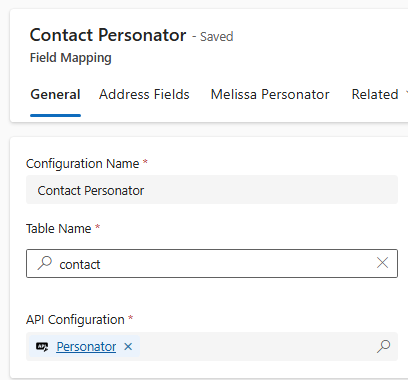
General Tab
-
Pick a name, the table where your data is located (in our screenshots, we are using Contact)
-
Pick the API Configuration
-
-
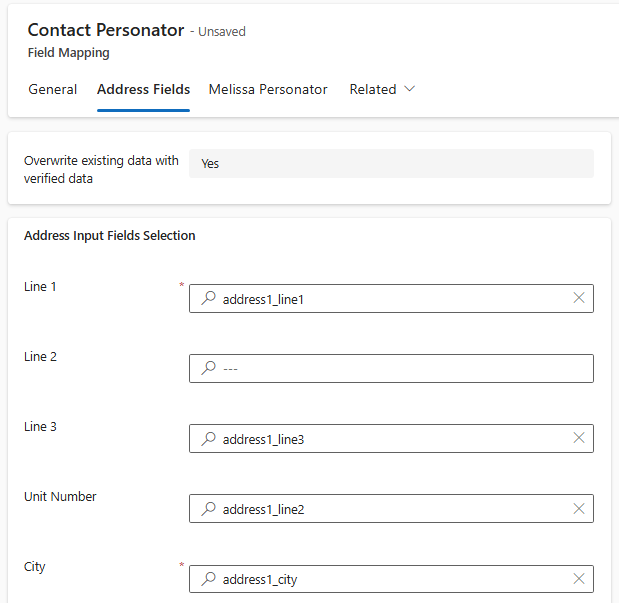
Address Fields Tab
-
Pick the fields (or columns) containing the address information
-
-
Melissa Personator Tab
-
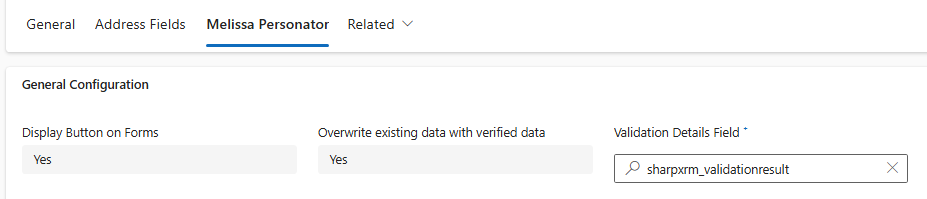
General Configuration Section
-
Display Button on Forms : Currently only available for Account and Contact. If set to yes, a Personator button will appear on Account or Contact forms.
-
Overwrite existing data with verified data : defaults to yes, it is recommended to not change as this is to support a legacy feature that is being deprecated.
-
Validation Details fields : select the column on your table where the Personator result is saved.
-
Melissa Blocking Result Codes : comma-separated Melissa result codes that stop Personator from writing your address and enrichment fields. When one of these codes is returned, only the Validation Details field is updated, so unverified data never overwrites your record. End an entry with * to match every code that starts with it, for example
AE*. Leave the field empty to keep the original behavior (AE*,PE*,EE*,NE*,SP01: any address, phone, email or name error blocks the update). New Field Mappings are pre-filled with a recommended list that blocks addresses Melissa could not find (AE01toAE07,AE10toAE14,AE21) but still saves building-level results such as county, ZIP+4 and coordinates when only the suite is wrong (AE08,AE09). The form warns you ifAE01,AE02orAE03is not covered by your list. See Melissa Result Codes: What Gets Saved and Why. -
How the address is written back : Address Line 1 receives the standardized address returned by Melissa, including directionals (for example N) and the suite (for example Ste 200). If you map a Unit Number field, the suite is removed from Address Line 1 and the suite number is written to the Unit Number field instead. A suite typed in Address Line 2 is moved into Address Line 1 by Melissa, and Address Line 2 is then cleared. We recommend keeping suites in Address Line 1.
-
-
Actions & Additional Parameters Section
-
Check, Append, Verify, Move : Refers to Melissa Personator's actions. Enable the ones that you want to use as part of your Personator API Call.
-
Personator Columns : Refers to the columns that are returned by Personator. To make the request faster, only select the set of columns that you need.
When no column group is selected, the request uses
GrpAddressDetails,GrpCensus,GrpCensus2,GrpNameDetails,GrpParsedAddress,GrpParsedEmailandGrpParsedPhone.GrpGeocodeis added automatically when a Latitude or Longitude field (or a Latitude/Longitude Personator Fields Mapping) is mapped and the Geocode package of your API Configuration is enabled, so coordinates are written without selecting it here.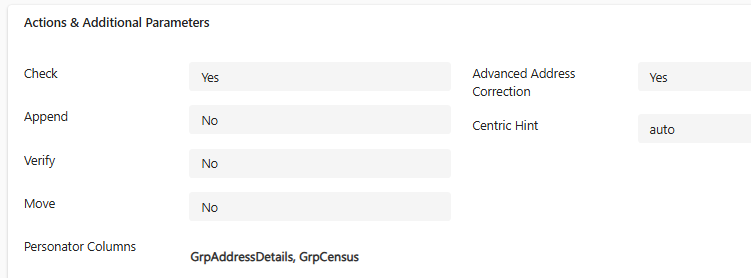
-
-
Input Section
-
Select the fields containing additional input for Personator (name, phone number etc.)
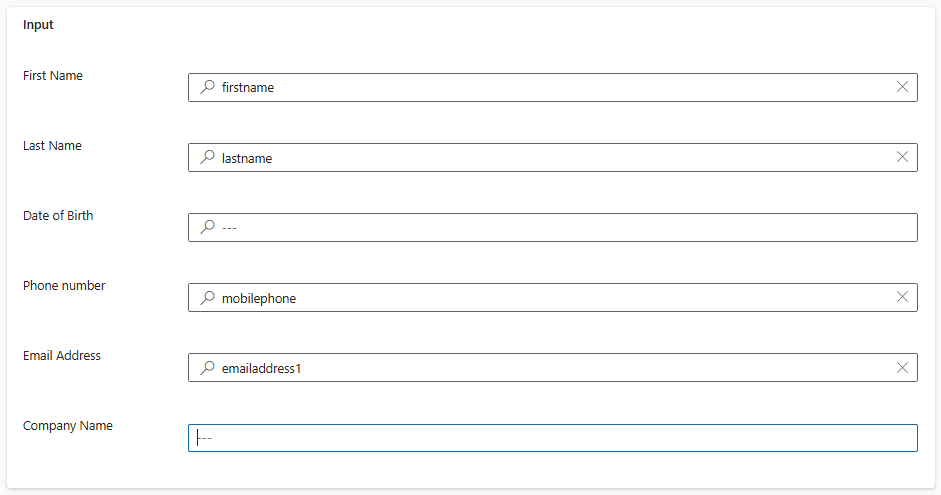
-
-
Personator Fields Mapping
-
If the subgrid is empty, you can click on the 'Insert Columns' button to populate it. It will be populated with all columns that can possibly be returned by Personator (column API Output Name).
-
Open the Personator output field you need and pick a Dataverse mapping using the 'Destination field' value.
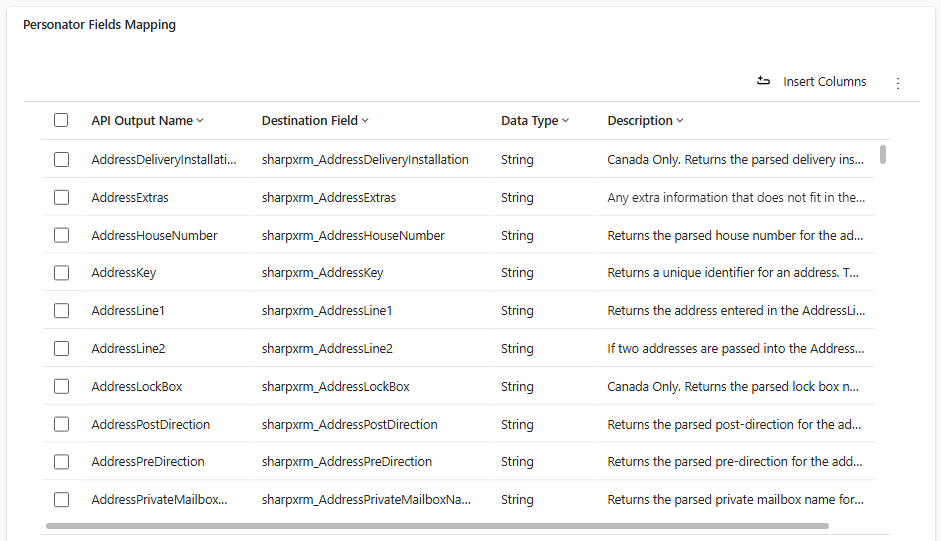
-
-
3. Using Personator
Working with Model Driven Forms
If you are working with the Contact or Account tables and have selected 'Display Button on Forms', simply navigate to the form for the entity type.
You will see the Personator button appear and should be able to use it right away.
What happens after the check
The form refreshes with the verified data. If the address was only partly verified (for example the building was found but the suite was not), a warning appears at the top of the form with the result codes and what they mean. If the address could not be verified, an error message explains why and only the Validation Details field is updated. If the record has no street address and no postal code, Melissa is not called, no credit is used, and a message tells you there is nothing to validate.
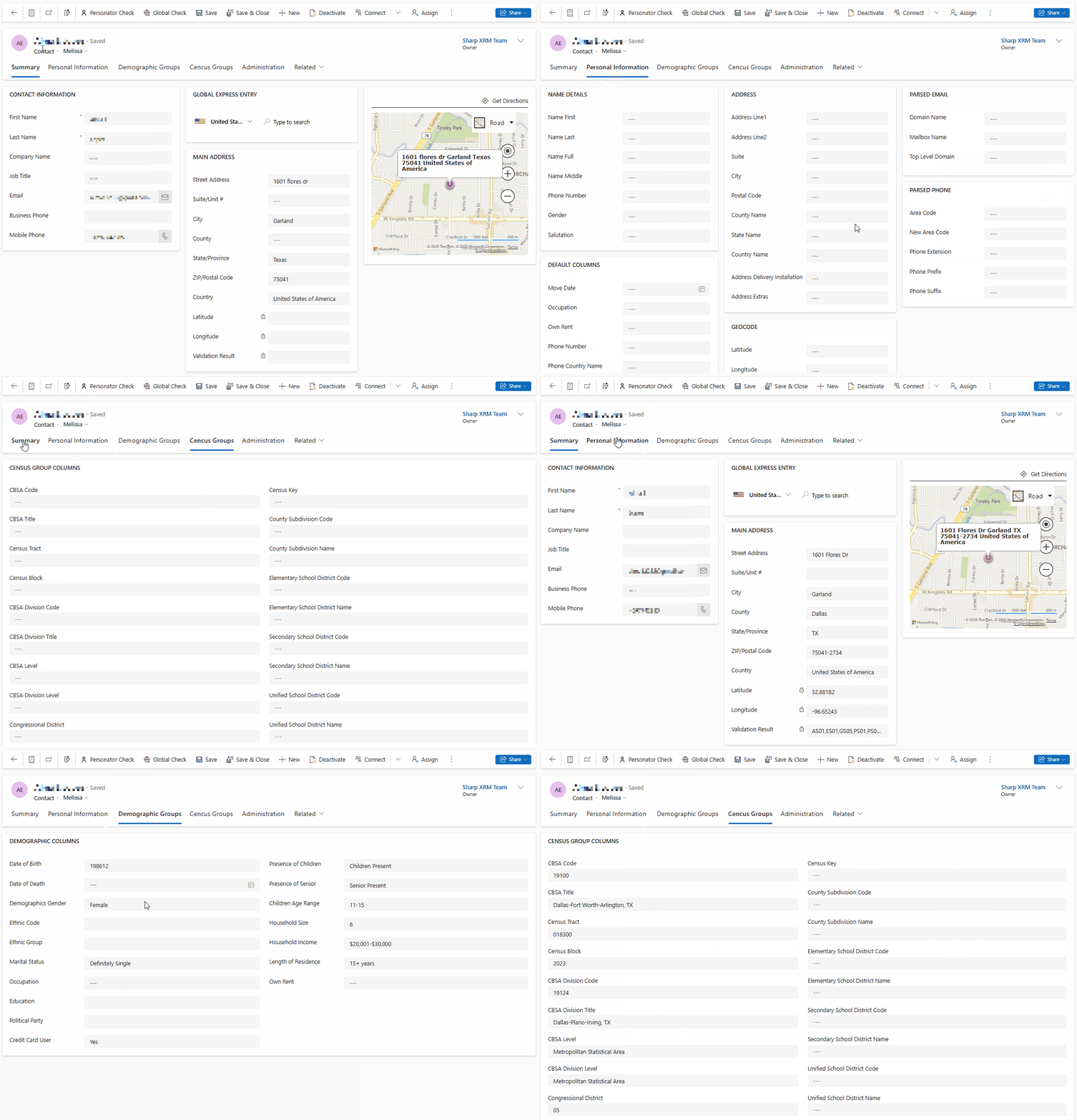
If you are working with other tables, refer to the section below on how to use Personator in a workflow, and make the workflow available to your users from the entity form.
Working with Workflows
You can use the Personator Custom Workflow step to run this operation in a workflow.
-
Open the Maker Portal, navigate to the Solutions area and create a new solution
-
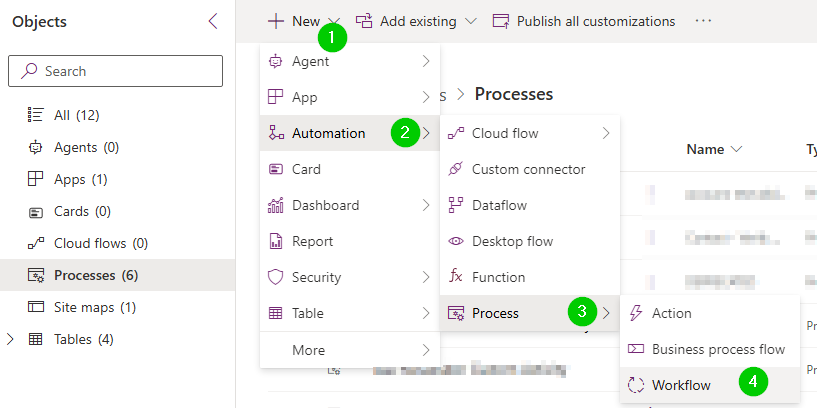
Create a new Workflow
-
Enter the Name, the Table and if you want the workflow to run in the background (asynchronous) or not
-
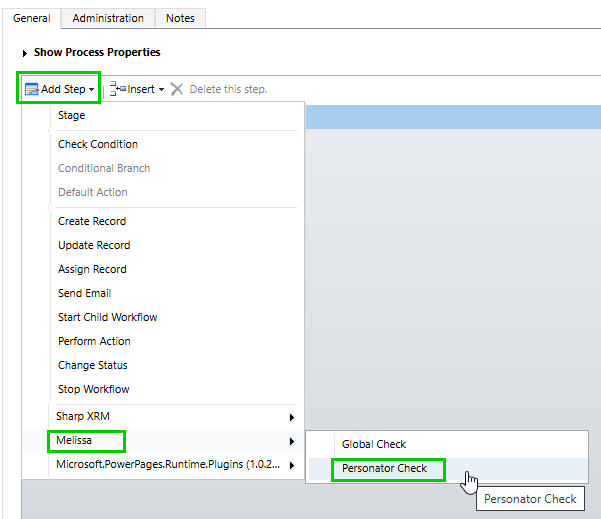
When the workflow editor open, click on the 'Add Step' and select Personator Check under the Melissa Menu
-
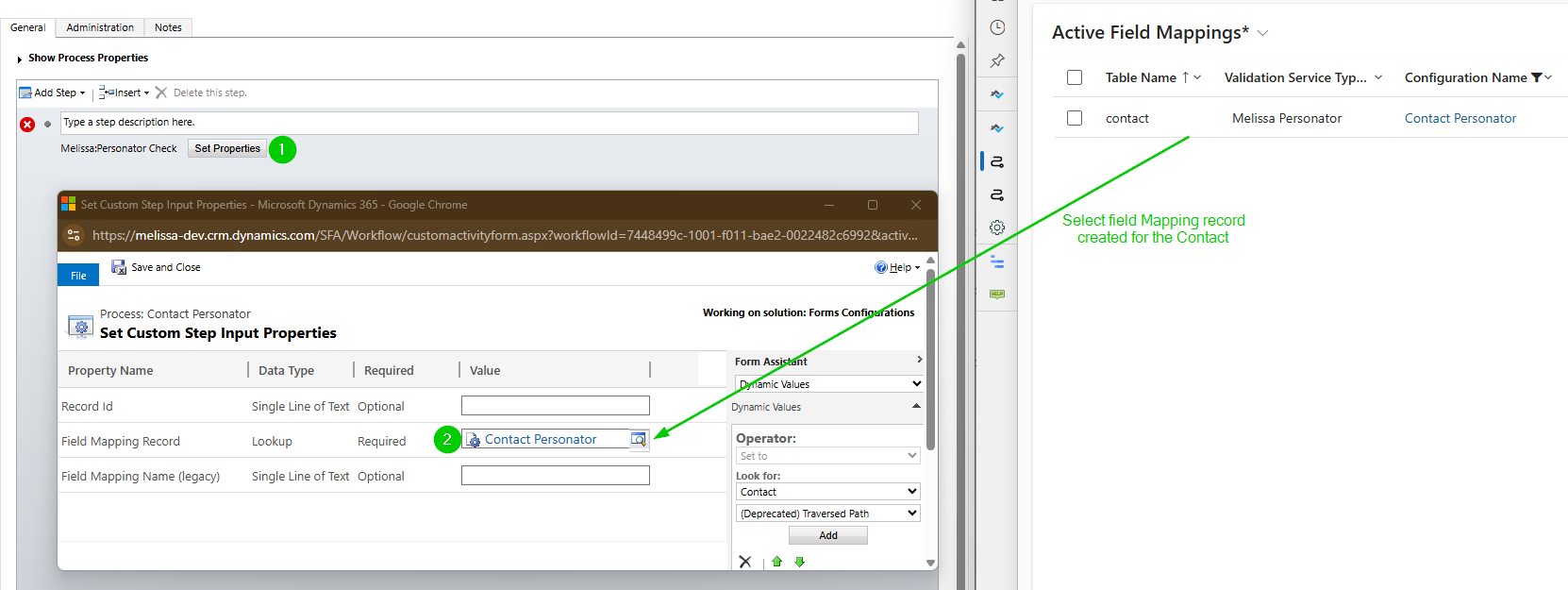
Pick the Field Mapping record in the step properties
-
Save and activate the workflow to use it.
The Personator Check step returns a Validation Status output (
VERIFIED,PARTIAL,NOT_VERIFIEDorSKIPPED) that you can use in a condition, together with the result codes and their descriptions.