This article explains how to add the Sharp XRM Google Maps Autocomplete control to a Microsoft Dataverse model-driven form and map its outputs to Dataverse columns. These steps must be done by an administrator or a user with system customization privileges.
Configure Google Autocomplete on a model-driven form
To keep the example simple, we use the Account table and its Address 1 columns. The configuration is the same for other tables and columns, standard or custom.
Before you start, create an API Configuration record for Google Maps (see Set up your Google Maps API key).
- In the Power Apps Maker Portal, select the environment where Address Validation for Dataverse is installed. Go to Tables > Account > Forms (or open the table from your solution) and open the main form you want to use.
- In the form designer, select the Address 1: Street 1 column. You can also find it with Tree view. In the properties pane, select Hide label.
- In the properties pane, expand Components and select + Component.
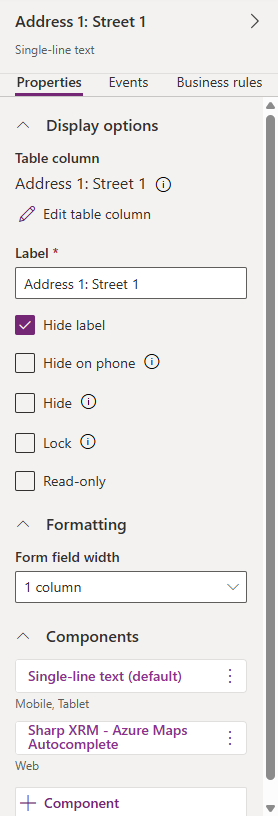
- In Add component, select Sharp XRM - Google Maps Autocomplete. If it isn't listed, select Get more components, add the control, and then select it.
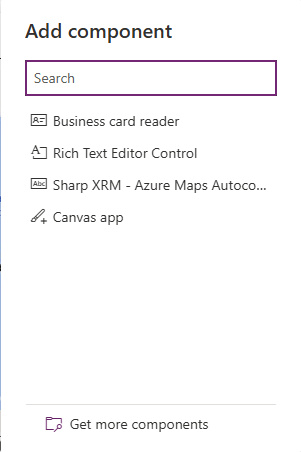
- Configure the control properties described in the table below. For API Configuration Name and Advanced Settings ID, enter a static value. For each address property, select the table column where the value should be stored.
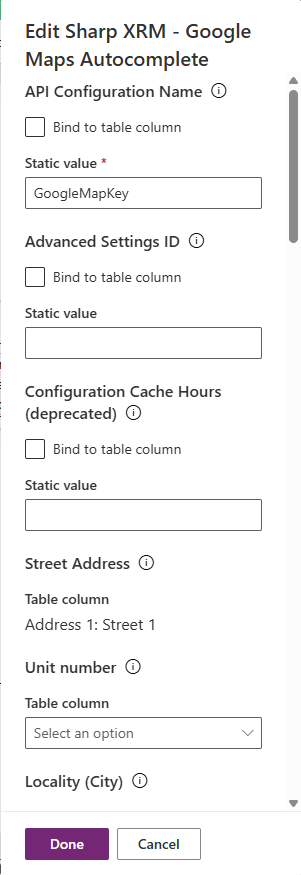
- Under Show component on, select where the control should be used (Web, Mobile, Tablet) and select Done.
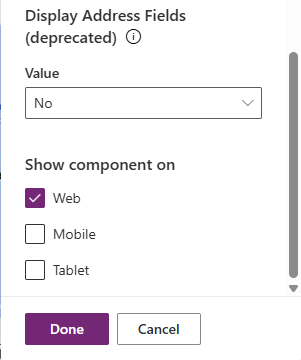
- Select Save and publish, then open an account record to test the control.
Control properties
| Property | Description | Value type |
|---|---|---|
| API Configuration Name * | The unique name of your Google Maps API Configuration record. | Static value |
| Advanced Settings ID | If you use Address Control Settings, the Identifier of your setting record. | Static value |
| Configuration Cache Hours | Optional. Leave empty. Current versions of the control manage the browser cache automatically and show this property as deprecated. | Static value |
| Street Address * | Column to store the street address. This is the column the control is placed on. Google returns the long street name by default (for example, 144 East Broadway Street); see Advanced Settings for the short name (144 E Broadway St). | Single line of text |
| Unit number | Column for the unit or suite number. Google Autocomplete does not return unit numbers; a value entered by the user is kept. | Single line of text |
| Locality (City) | Column to store the city. The returned locality can vary by country. | Single line of text |
| Admin Area Level 1 (State) | Column to store the state or province. North American regions use the long name by default; see Advanced Settings for the short name. | Single line of text |
| Postal Code | Column to store the postal code. Google can return extended US ZIP codes (ZIP+4); see Advanced Settings. | Single line of text |
| Country | Column to store the country. The long name is used by default; see Advanced Settings for ISO2. | Single line of text |
| Admin Area Level 2 (County) | Column to store the county, when returned by Google. | Single line of text |
| Postal Town | Column to store the postal town used for mailing addresses in some countries (for example, the United Kingdom). | Single line of text |
| Admin Area Level 3 to 6 | Columns to store minor civil divisions below the county level, in countries that use them. | Single line of text |
| Full address | Optional column for the complete formatted address. | Single line of text |
| Latitude | Column to store the latitude. | Floating point number |
| Longitude | Column to store the longitude. | Floating point number |
| Google Places output parameters - optional values that are filled in when the selected result provides them, and may be blank otherwise. Bind each property to a compatible Dataverse column. | ||
| Places - Business Status | Google Places business_status: whether the business is operational. | Single line of text |
| Places - Editorial Summary | Google Places editorial_summary.overview: a short curated description of the place. | Multiple lines or single line of text |
| Places - Phone Number | Google Places formatted_phone_number: the business's local-format phone number. | Phone or single line of text |
| Places - Business Name | Google Places name: the official name of the business or place. | Single line of text |
| Places - Google Maps URL | Google Places url: a link to the place's Google Maps listing. | URL or single line of text |
| Places - Business URL | Google Places website: the business's official website, when available. | URL or single line of text |
| Places - Vicinity | Google Places vicinity: a brief location description, often referencing nearby landmarks. | Multiple lines or single line of text |
| Places - Types | Google Places types: place categories as a comma-separated list. | Multiple lines or single line of text |
| Display Address Fields (deprecated) | No longer used. Leave it set to No and add the individual address columns to the form. | Yes / No |
* Required. For optional outputs, bind only the values you need to store.
Working with Advanced Settings
Address Control Settings let administrators control the format of returned values, for example short street and state names.
- In the Address Validation for Power Apps app, go to Settings > Address Control Settings and select + New.
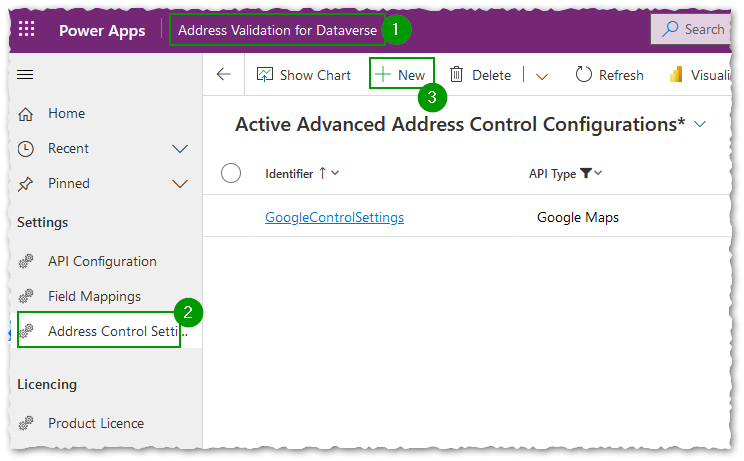
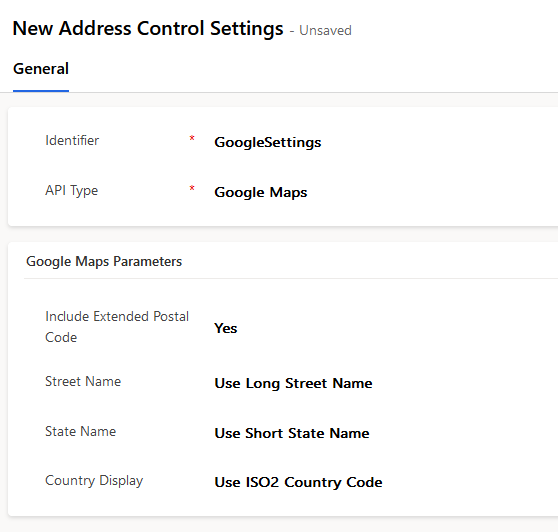
- Enter a unique Identifier. This is the value you enter in the control's Advanced Settings ID property.
- Set API Type to Google Maps and choose the parameters below.
| Parameter | Possible values | Description |
|---|---|---|
| Include Extended Postal Code | Yes / No | US only. Adds the +4 ZIP extension when available. |
| Street Name | Use Short Street Name / Use Long Street Name | For example, 4878 E. 18th St. or 4878 East 18th Street. |
| State Name | Use Short State Name / Use Long State Name | For example, NV or Nevada. |
| Country Display | Use ISO2 Country Code / Use ISO3 Country Code / Use Long Country Name | For example, CA or Canada. Google Autocomplete does not provide ISO3; selecting ISO3 returns the ISO2 code. |
Note: Address Control Settings are cached in each user's browser and refresh automatically when the cached copy expires. To apply a change immediately, users can clear their browser cache.
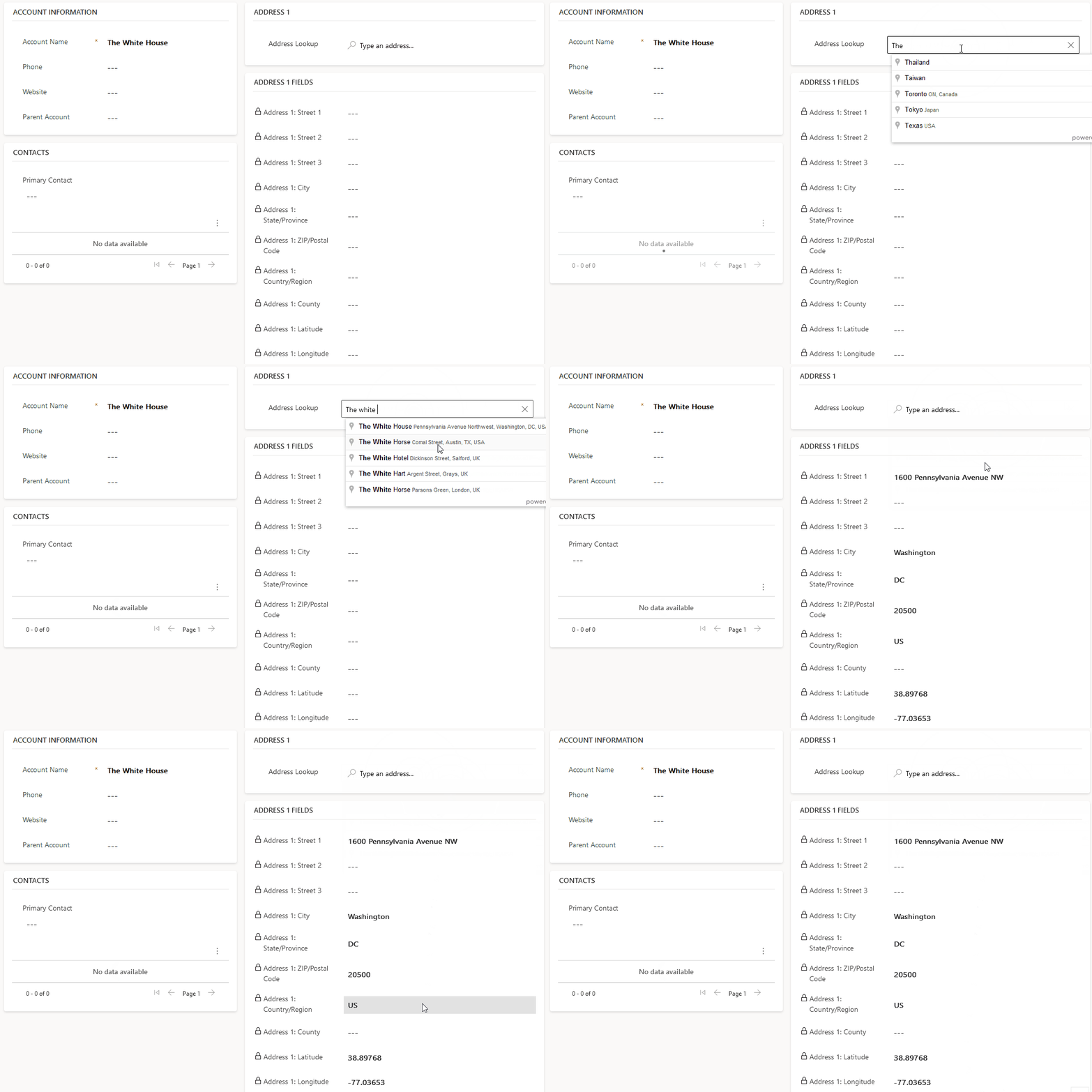
Visual example in a model-driven form
Assign the required security privileges to users
After configuration, assign the required security roles to users so they can use the autocomplete controls. See Assign privileges for users.