Get your Google Maps API key
- Sign in to the Google Maps Platform console.
- Select (or create) a project.
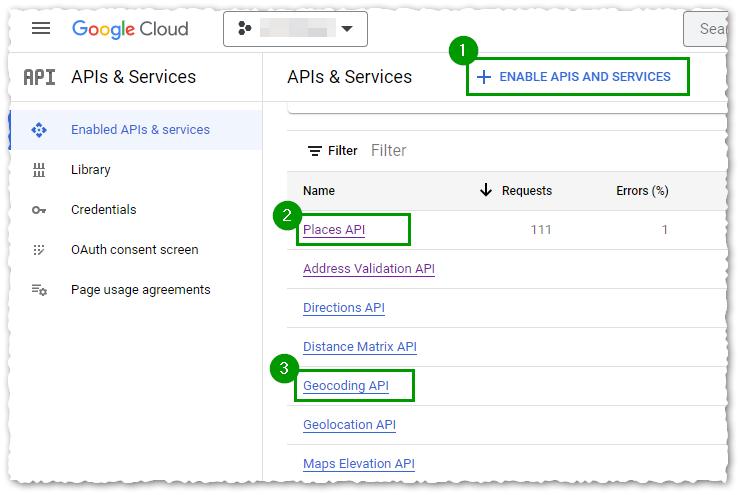
- Make sure the following APIs are enabled for the project. If an API is not listed, use Enable APIs and Services to enable it.
- Maps JavaScript API and Places API - used by the Google Maps autocomplete control.
- Geocoding API - used by background validation (workflows) and the Google Maps Geocoding action.
- Address Validation API - only if you use the Google Address Validation action.
- Go to Credentials to create or copy your Google Maps API key. If you restrict the key, make sure it still allows the APIs above.
Set up the Google Maps API Configuration
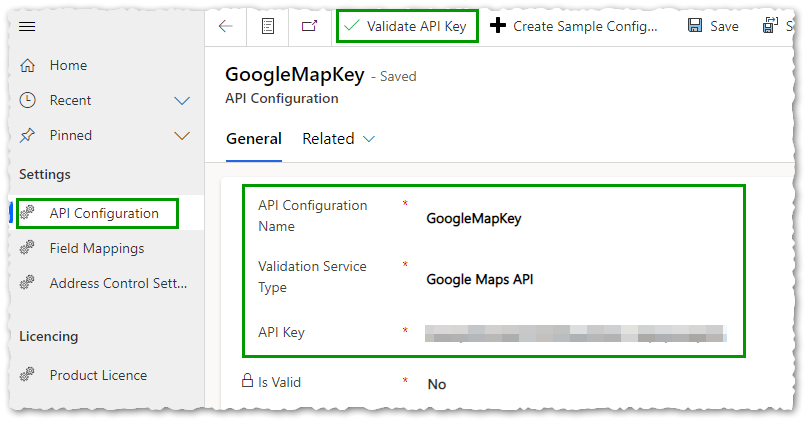
- In the Address Validation for Power Apps app, go to Settings > API Configuration.
- Create a new record and enter the following information:
- API Configuration Name: a unique name for the configuration. You enter this name in the Google autocomplete control or the workflow to tell it which API key to use.
- Validation Service Type: select Google Maps API.
- Service License Key: enter your Google Maps API key.
- Save the record, then select Validate API Key in the command bar. The key is checked in the background. If it works, Is Valid is set to Yes; if not, an error message is displayed and the value stays No.