Assign the required security roles to users
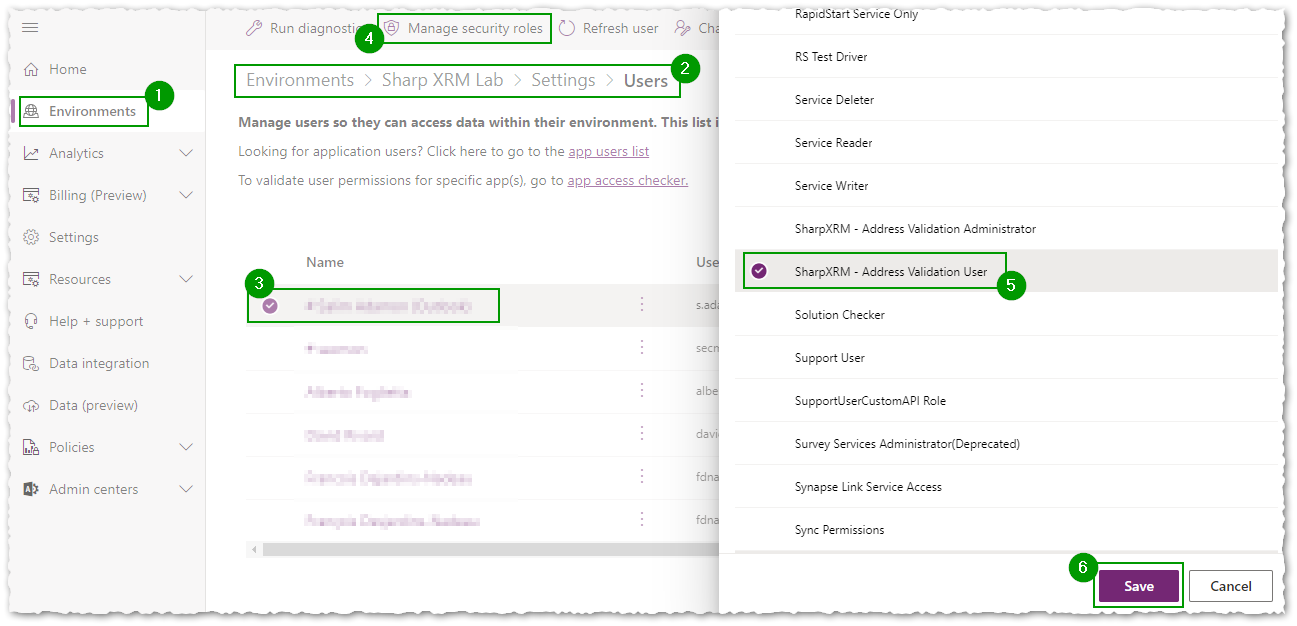
To use the address autocomplete controls or background validation, users must have the right privileges. Assign the security role named SharpXRM - Address Validation User to the users who should be able to validate addresses.
- Go to the Power Platform admin center and select Manage > Environments.
- Select the environment where Address Validation for Dataverse is installed.
- Under Access, select Users > See all.
- Select the users who need to validate addresses, then select Manage security roles.
- Select the SharpXRM - Address Validation User role and select Save.
About the Address Validation roles
- SharpXRM - Address Validation User lets users read the configuration and license information needed to validate addresses, and record validation transaction logs.
- SharpXRM - Address Validation Administrator lets users manage Address Validation settings such as API Configurations, Address Control Settings and Field Mappings.
You can add these privileges to your own custom security role if needed; only do this if you are familiar with security role configuration. After you upgrade the solution, use the latest supplied roles. If you copied the privileges into a custom role, compare it with the current supplied role, because new privileges can be added in a release.