What this article covers
This article describes how to activate a purchased license for Address Validation for Dataverse. It assumes you have received the activation email with your license key.
Install a new license
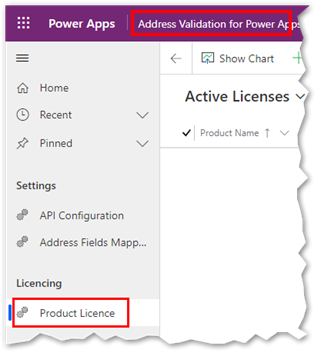
- Open the Address Validation for Power Apps app and go to Licencing > Product Licence (named Product Key in some versions).
- Create a new license.
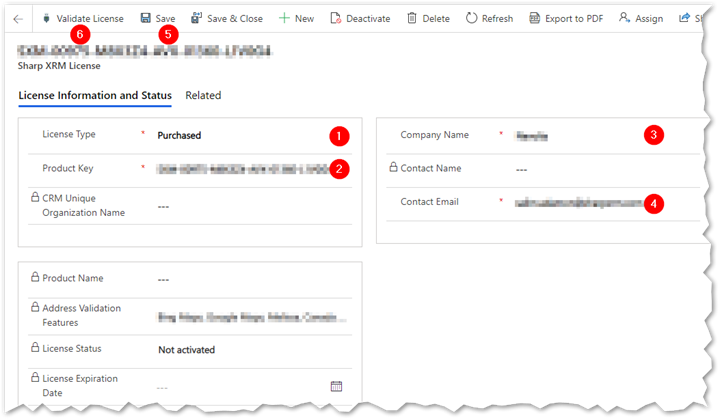
- Select Purchased in the License Type field.
- Enter or paste the Product Key.
- Enter your Company Name. It must match the name in your license email.
- Enter the registered email address in Contact Email. It must match the email address in your license email.
- Select Save.
- Select Validate License. This validates the license information with the Sharp XRM license servers (it requires internet access and can take up to a minute), fills in the read-only fields and displays a confirmation message.
Convert a trial to a purchased license, or extend an existing license
Before converting a trial or extending a license expiration date, make sure you have received the activation email with the license key and expiration date.
- Open the license record.
- Select Update License.
A confirmation message is displayed and the license information is updated. Renewals and extensions are also applied automatically, starting three days before the current license expires. See License management: upgrade and subscription renewal.