What this article covers
If your trial was extended or converted to a subscription, or if you recently renewed your subscription, update your license so the latest information (including the expiration date) is retrieved from the Sharp XRM license server. This lets you keep using the product without interruption.
Automatic renewal
Starting three days before your license expires, Address Validation automatically checks the Sharp XRM license server for a renewed or extended license and applies the new expiry date. If your license has already expired but was renewed, it recovers on its own the next time an address control loads. In most cases you do not need to do anything.
If the new expiry date does not appear (for example, if your environment cannot reach the license server), update the license manually as described below.
Update your license manually
- Open the Address Validation for Power Apps app.
- Go to Licencing > Product Licence (named Product Key in some versions).
- Open your active license record.
- Select Update License in the command bar and wait for the update to complete.
- Check that the License Expiration Date is updated.
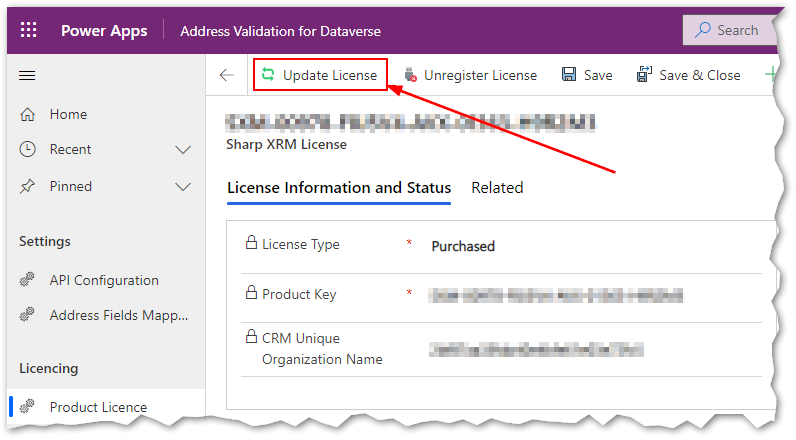
If the Update License button is not available, your solution is out of date. Upgrade to the latest version from Microsoft AppSource or request the latest solution files from our website, then update your license.