This article explains how to add the Sharp XRM PostGrid Autocomplete control to a Microsoft Dataverse model-driven form. These steps must be done by an administrator or a user with system customization privileges.
Before you start
- An Address Validation license that includes the PostGrid add-on.
- An API Configuration record with Validation Service Type PostGrid API that holds your PostGrid public key (
live_pk_), with your environment URL registered as an allowed origin. See Set up your PostGrid API Keys. A secret key does not work in the control.
How searching works
PostGrid has two address datasets: one for the United States and Canada and one for international addresses. The control's Search Scope property decides which one is used:
- Auto (default): US and Canadian addresses use the US/Canada dataset; every other country uses the international dataset. When no country is selected, the international dataset is used because it covers every country.
- US and Canada: always use the US/Canada dataset.
- International: always use the international dataset.
Suggestions shown while the user types are free. One PostGrid lookup is used when the user selects an address. When an international result is a building or complex, selecting it shows the units inside it instead of using a lookup.
Configure PostGrid Autocomplete on a model-driven form
To keep the example simple, we use the Account table and its Address 1 columns. The configuration is the same for other tables and columns, standard or custom.
- In the Power Apps Maker Portal, select the environment where Address Validation for Dataverse is installed. Go to Tables > Account > Forms (or open the table from your solution) and open the main form you want to use.
- In the form designer, select the Address 1: Street 1 column. You can also find it with Tree view. In the properties pane, select Hide label.
- In the properties pane, expand Components and select + Component.
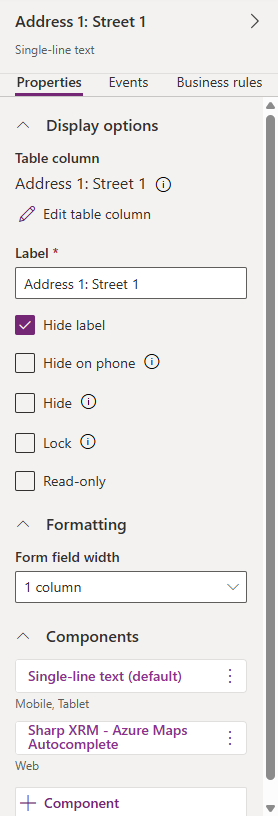
- In Add component, select Sharp XRM - PostGrid Autocomplete. If it isn't listed, select Get more components, add the control, and then select it.
- Configure the control properties described in the table below. For API Configuration Name and the country options, enter a static value. For each address property, select the table column where the value should be stored.
- Under Show component on, select where the control should be used (Web, Mobile, Tablet) and select Done.
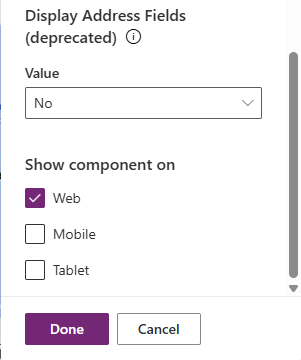
- Select Save and publish, then open an account record to test the control.
Control properties
| Property | Description | Value type |
|---|---|---|
| API Configuration Name * | The unique name of the API Configuration record that holds your PostGrid public key (for example, PostGrid Autocomplete). | Static value |
| Advanced Settings ID | Optional. Not used by PostGrid formatting today; leave it empty. | Static value |
| Street * | Column to store the street address (number and street name). This is the column the control is placed on. | Single line of text |
| Unit number | Column to store the unit, suite or apartment number, when available. | Single line of text |
| City * | Column to store the city. | Single line of text |
| State / Province * | Column to store the state or province. | Single line of text |
| Zip / Postal code | Column to store the postal code. | Single line of text |
| Country * | Column to store the country, as a two-letter ISO code (for example US, CA, GB). | Single line of text |
| Full address | Optional column for the complete formatted address. | Single line of text |
| Company | Optional column for the company or organization name, when PostGrid returns one (international results). | Single line of text |
| Default Country | Country selected when the form opens, as an ISO 3166-1 alpha-2 code (for example US). If the record already has a country, that country is used instead. | Static value |
| Display Countries | Countries users can select, as comma-separated ISO alpha-2 codes without spaces (for example US,CA,MX). Leave empty to show all countries. | Static value |
| Top Countries | Countries pinned to the top of the list, as comma-separated ISO alpha-2 codes (for example CA,US). | Static value |
| Search Scope | Auto (default), US and Canada, or International. See How searching works above. | Choice |
* Required. The PostGrid control does not return county, latitude or longitude. To capture coordinates, verify the address with a workflow or Power Automate action with geocoding turned on.
Troubleshooting
| Symptom | What to check |
|---|---|
| The control reports an origin or access error | The API Configuration must hold the public key, and your environment URL must be in the key's allowed origins in PostGrid. |
| No suggestions for a European or other non-North-American address | Search Scope is set to US and Canada, or the selected country is US or CA. Use Auto or International. |
| The control reports a license error | Your Address Validation license does not include the PostGrid add-on. |
Assign the required security privileges to users
After configuration, assign the required security roles to users so they can use the autocomplete controls. See Assign privileges for users.