This article explains how to add the Sharp XRM Smarty address autocomplete control to a Microsoft Dataverse model-driven form. These steps must be done by an administrator or a user with system customization privileges.
Before you start
- An Address Validation license that includes the Smarty add-on.
- A Smarty subscription for US Address Autocomplete, International Address Autocomplete, or both.
- An API Configuration record with Validation Service Type Smarty Api that holds your Smarty embedded key, with your environment's host name added to the key's authorized hosts. See Set up your Smarty API Keys. The secret key (Auth ID and Auth Token) does not work in the control.
How searching works
Smarty has two autocomplete products: one for the United States and one for international addresses. The control's Search Scope property decides which one is used:
- Auto (default): the United States uses US Address Autocomplete, and so does a search with no country selected. Every other country uses International Address Autocomplete.
- US: always use US Address Autocomplete.
- International: always use International Address Autocomplete. A country other than the United States must be selected; the control asks for one if it is missing.
International searches need a country, so users should select the country before typing the address.
- Buildings with several units. In the United States, a building with several apartments or suites appears once, with the number of units, for example 1042 W Center St Apt (108 units). Selecting it lists the units; typing part of the unit number narrows the list. Internationally, an entry that contains several addresses opens the list of those addresses in the same way.
- Lookups. US Address Autocomplete counts every search request, so the control waits until 3 characters have been typed and the user pauses briefly. Opening the units of a US building is also a request. International Address Autocomplete counts one lookup when the user selects an address.
Configure Smarty Autocomplete on a model-driven form
To keep the example simple, we use the Account table and its Address 1 columns. The configuration is the same for other tables and columns, standard or custom.
- In the Power Apps Maker Portal, select the environment where Address Validation for Dataverse is installed. Go to Tables > Account > Forms (or open the table from your solution) and open the main form you want to use.
- In the form designer, select the Address 1: Street 1 column. You can also find it with Tree view. In the properties pane, select Hide label.
- In the properties pane, expand Components and select + Component.
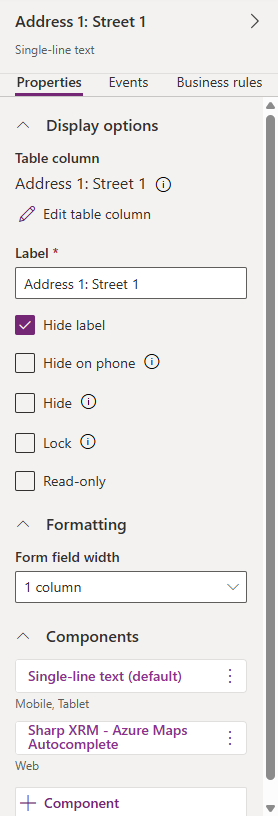
- In Add component, select Sharp XRM - Address Autocomplete (Smarty). If it isn't listed, select Get more components, add the control, and then select it.
- Configure the control properties described in the table below. For API Configuration Name, the country options, Search Scope and Maximum Results, enter a static value. For each address property, select the table column where the value should be stored.
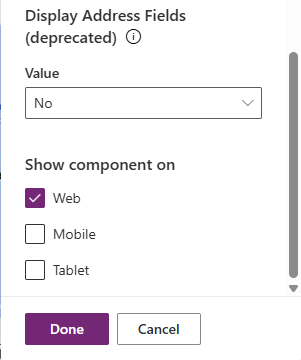
- Under Show component on, select where the control should be used (Web, Mobile, Tablet) and select Done.
- Select Save and publish, then open an account record to test the control.
[Screenshot placeholder: the Smarty control on an account form, showing US suggestions including a building with "(N units)".]
Control properties
| Property | Description | Value type |
|---|---|---|
| API Configuration Name * | The unique name of the API Configuration record that holds your Smarty embedded key (for example, Smarty Autocomplete). | Static value |
| Advanced Settings ID | Optional. Leave empty. | Static value |
| Street * | Column to store the street address (number and street name). This is the column the control is placed on. | Single line of text |
| Unit number | Column to store the unit, suite or apartment number, when available. | Single line of text |
| City * | Column to store the city. | Single line of text |
| State / Province * | Column to store the state, province or region. | Single line of text |
| Zip / Postal code | Column to store the postal code. | Single line of text |
| Country * | Column to store the country, as a two-letter ISO code (for example US, CA, GB). | Single line of text |
| Full address | Optional column for the complete formatted address. | Single line of text |
| Company | Optional. Smarty autocomplete does not return a company name separately, so this column is cleared when an address is selected. Leave it unmapped if you don't want that. | Single line of text |
| Default Country | Country selected when the form opens, as an ISO 3166-1 alpha-2 code (for example US). If the record already has a country, that country is used instead. | Static value |
| Display Countries | Countries users can select, as comma-separated ISO alpha-2 codes without spaces (for example US,CA,GB). Leave empty to show all countries. | Static value |
| Top Countries | Countries pinned to the top of the list, as comma-separated ISO alpha-2 codes (for example US,CA). | Static value |
| Search Scope | Auto (default), US, or International. See How searching works above. | Choice |
| Maximum Results | Optional. Number of suggestions per search, from 1 to 10. The default is 10, which is also Smarty's limit. | Whole number |
* Required. The control does not return county, latitude or longitude. To capture those, verify the address with a workflow or Power Automate action.
What gets written for international addresses
International autocomplete returns a street line, city, region and postal code. A few countries put extra information in the street line, which the control keeps as Smarty returns it:
- United Kingdom: an organization name can appear before the street, for example Prime Minister & First Lord of the Treasury 10 Downing Street.
- Mexico and Brazil: the neighborhood follows the street, for example Paseo de la Reforma 505 Col Cuauhtémoc.
- Canada: Smarty writes units as 2300-1000 Rue Sherbrooke O. The control separates them: 2300 goes to the unit number and 1000 Rue Sherbrooke O to the street.
For fully separated components, run the address through the Smarty verification step in a workflow or flow.
Troubleshooting
| Symptom | What to check |
|---|---|
| The control says the host name is not authorized on the embedded key | Add the host name shown in the message to the embedded key's hosts in your Smarty account. If users connect through a VPN or virtual desktop, add its public IP address to the key. |
| The control says it could not reach Smarty | Usually the same host name problem: Smarty's rejection reaches the browser as an unreadable network error. Otherwise, a network, VPN or firewall is blocking requests to smarty.com. |
| No active subscription for US Address Autocomplete or International Address Autocomplete | Your Smarty account has no subscription for that product, or its lookups are used up. They are separate Smarty products. |
| The control says it is being rate limited | Wait a moment and try again. If it happens regularly, add your office's public IP address to the embedded key in Smarty. |
| International address search needs a country | Select a country other than the United States, or set Search Scope to Auto. |
| The control says the record holds a Smarty secret key pair | The API Configuration Name points at the verification record. Use the record that holds the embedded key. |
| The control reports a license error | Your Address Validation license does not include the Smarty add-on. |
Assign the required security privileges to users
After configuration, assign the required security roles to users so they can use the autocomplete controls. See Assign privileges for users.