Deprecated: Microsoft has retired Bing Maps for Enterprise. New Bing Maps accounts and keys are no longer available, free (Basic) keys stopped working on June 30, 2025, and Enterprise keys stop working on June 30, 2028. We recommend switching to Azure Maps: see Set up your Azure Maps API credentials. This article remains available for customers who still have an Enterprise Bing Maps key.
Get your Bing Maps API key
If you have an existing Bing Maps for Enterprise account:
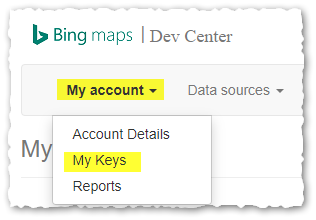
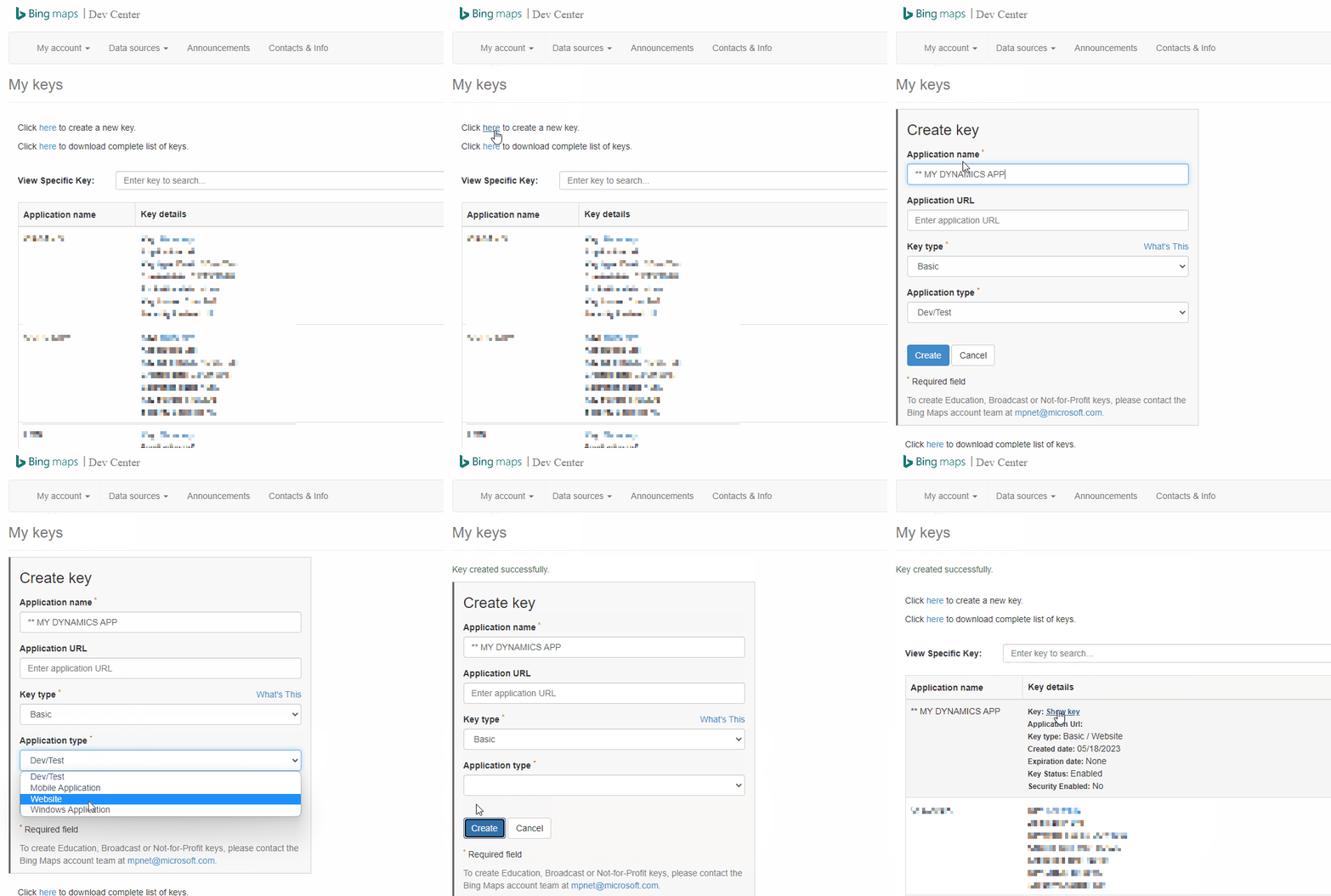
- Sign in to the Bing Maps Dev Center and go to My Account > My Keys.
- Copy your Enterprise key so you can enter it in the Sharp XRM app.
Set up the Bing Maps API Configuration
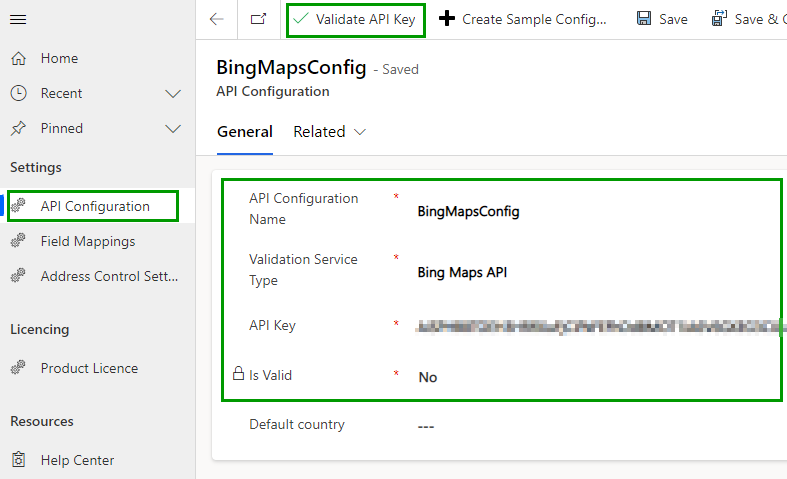
- In the Address Validation for Power Apps app, go to Settings > API Configuration.
- Create a new record and enter the following information:
- API Configuration Name: a unique name for the configuration. You enter this name in the Bing Maps autocomplete control or the workflow to tell it which API key to use.
- Validation Service Type: select Bing Maps API.
- Service License Key: enter your Bing Maps key.
- Save the record, then select Validate API Key in the command bar. The key is checked in the background. If it works, Is Valid is set to Yes; if not, an error message is displayed and the value stays No.