Obtain your Canada Post API key
To use Canada Post Autocomplete for Canadian addresses, contact us at support@sharpxrm.com. Once you have your Canada Post API key, continue with the next step.
Set up the Canada Post API Configuration
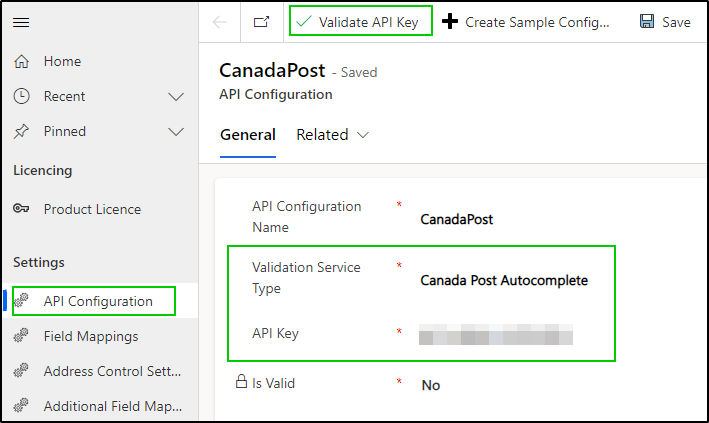
- In the Address Validation for Power Apps app, go to Settings > API Configuration.
- Create a new record and enter the following information:
- API Configuration Name: a unique name for the configuration. You enter this name in the Canada Post autocomplete control to tell it which API key to use.
- Validation Service Type: select Canada Post Autocomplete.
- Service License Key: enter your Canada Post key.
- Save the record, then select Validate API Key in the command bar. The key is checked in the background. If it works, Is Valid is set to Yes; if not, an error message is displayed and the value stays No.
Next, add the control to your forms: see Configure Canada Post Autocomplete on Dataverse Forms.